1. Disconnect Your Website (Recommended)
This method safely removes all active JSON-LD structured data generated by the app.
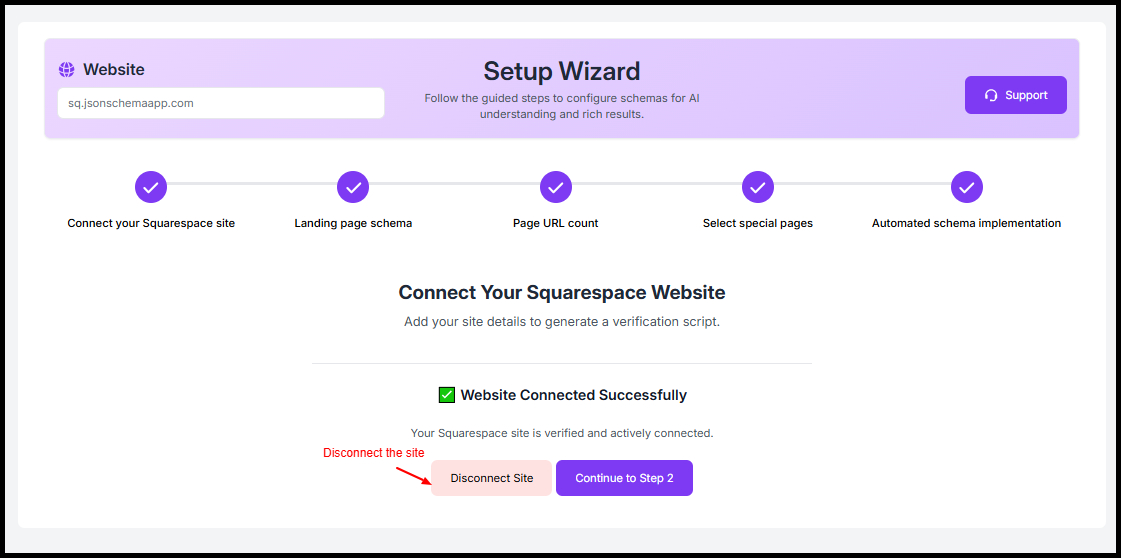
Step 1: Open the JSON Schema App
Log in to your Squarespace account and open the Schema & JSON-LD App dashboard.
Step 2: Go to Setup Wizard
Navigate to the Setup Wizard section.
Step 3: Click “Disconnect Site”
Under Website Connected Successfully, click the Disconnect Site button.
Step 4: Confirm Disconnection
Confirm the action when prompted.
Once disconnected:
- All automatically generated JSON-LD markup will stop rendering.
- Your Squarespace site will no longer output structured data from the app.
- Your settings remain saved in case you reconnect later.
Option 2: Uninstall the App from Squarespace
If you want to completely remove the app:
Step 1: Go to Squarespace Settings
Log in to Squarespace.
Step 2: Open Connected Apps
Navigate to:
Settings → Connected Apps
Step 3: Select JSON Schema App
Find the Schema & JSON-LD App in your installed apps list.
Step 4: Click Remove / Uninstall
Confirm the removal.
🚫 After uninstalling:
- All JSON-LD scripts generated by the app are removed.
- The app will no longer have access to your website.
- Any automated schema updates will stop.
Important Notes
- If you manually added custom schema code inside Squarespace (via Code Injection), you must remove it separately.
- Disconnecting is reversible (you can reconnect anytime).
- Uninstalling completely removes the integration
When Should You Remove the App?
You may want to remove the JSON Schema App if:
- You’re switching to another SEO tool
- You’re redesigning your Squarespace website
- You want to manually manage structured data
- You no longer need rich snippet optimization
Found this helpful?
( 14 out of 31 found helpful )