To install the JSON Schema App from our website on your Shopify store, follow these steps:
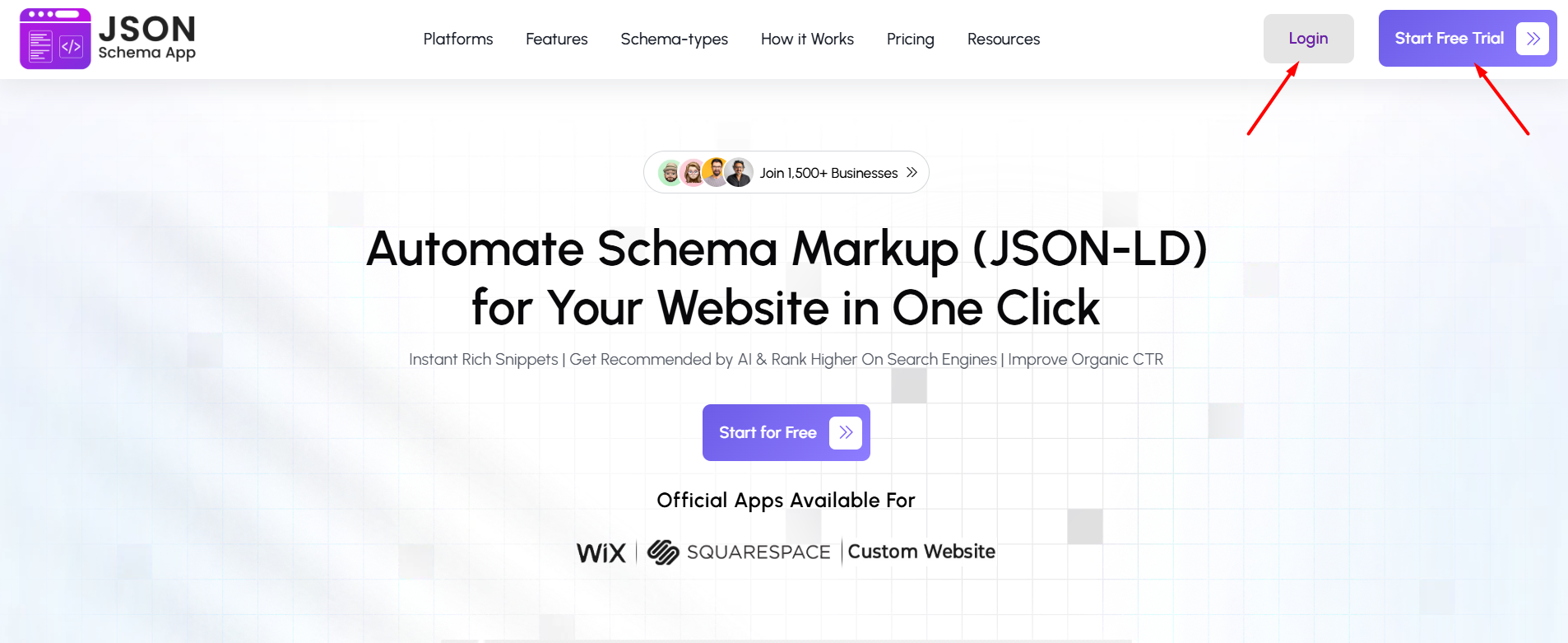
Step 1: Go to the JSON Schema App website and log in to your account. If you don’t have an account yet, click on “Start Free Trial” and create one to continue.
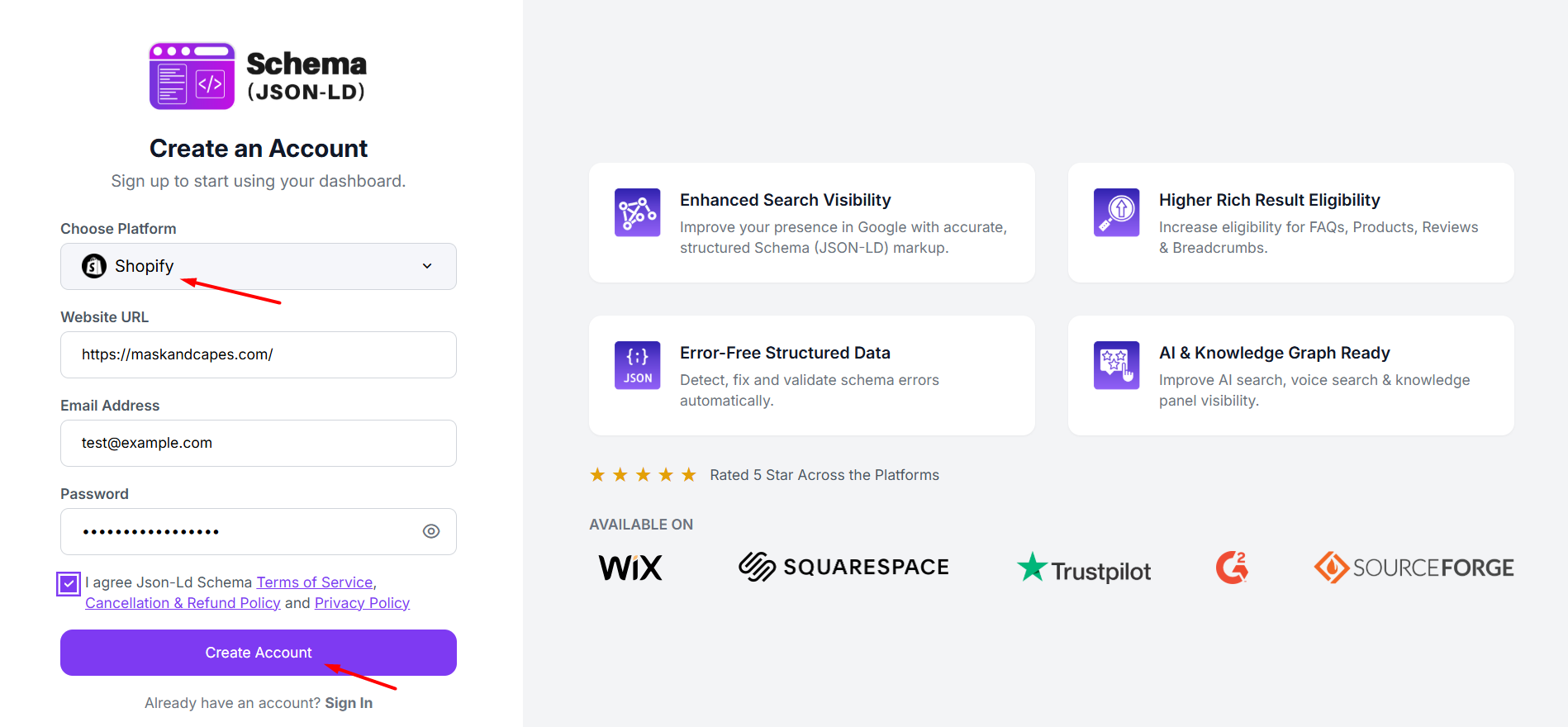
Step 2: Select Shopify as your platform, enter your website URL, email address, and create a password. Accept the terms and click “Create Account” to proceed.
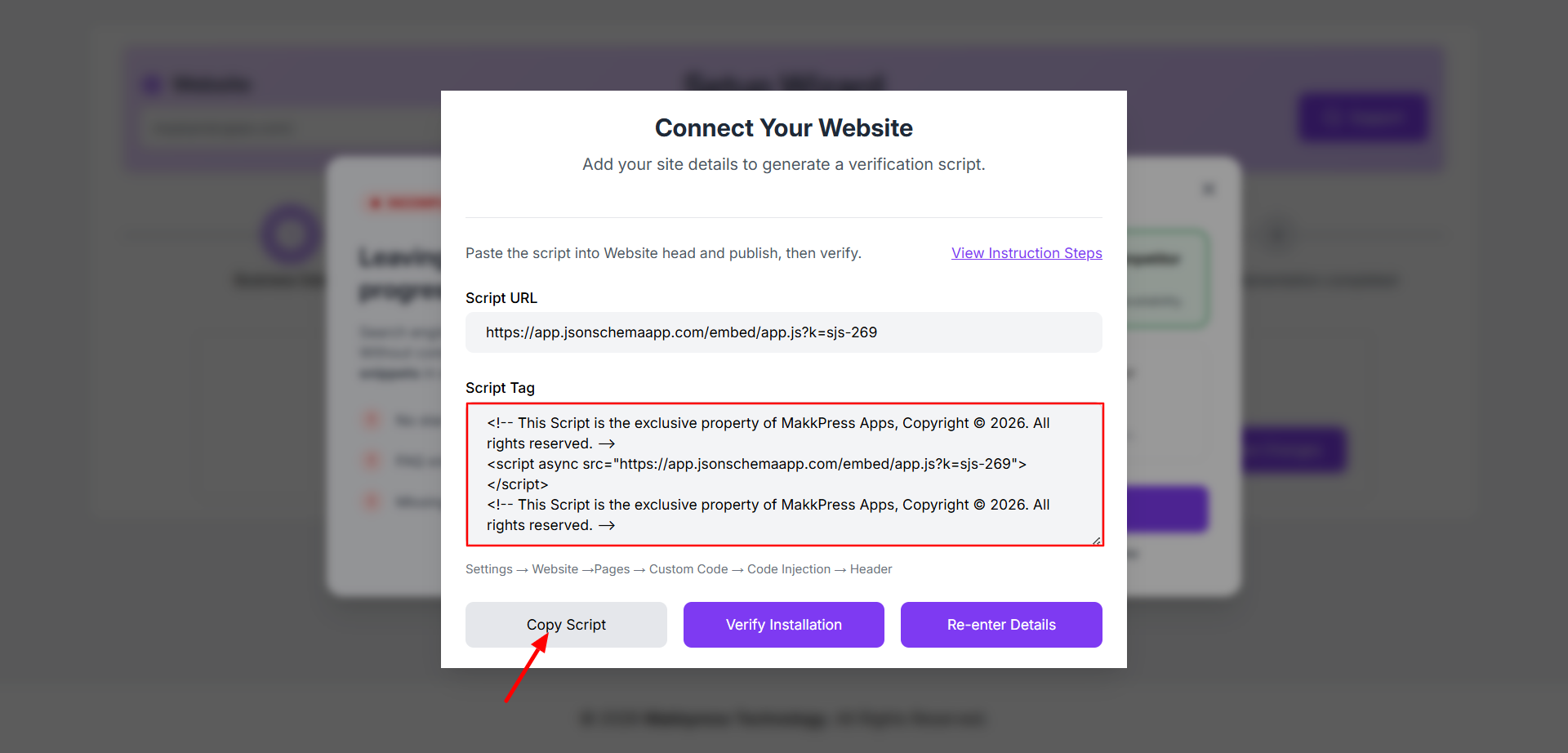
Step 3: In the setup screen, copy the generated script tag by clicking “Copy Script.” This code will be added to your Shopify store for further integration.
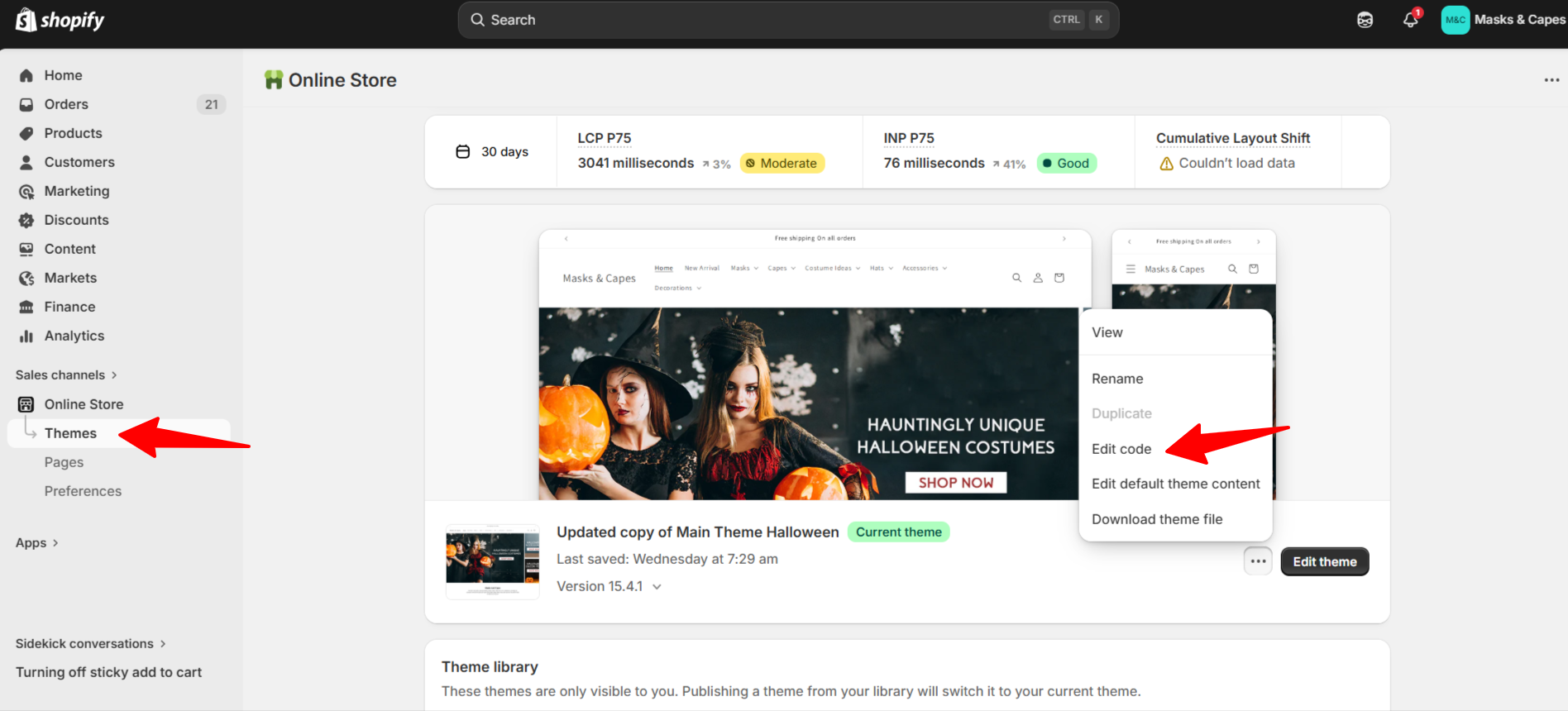
Step 4: Log in to your Shopify Admin panel, go to Online Store → Themes, click on the three dots, and select “Edit code.”
Step 5: In the code editor, open the layout folder and click on theme.liquid to access your theme’s main file.
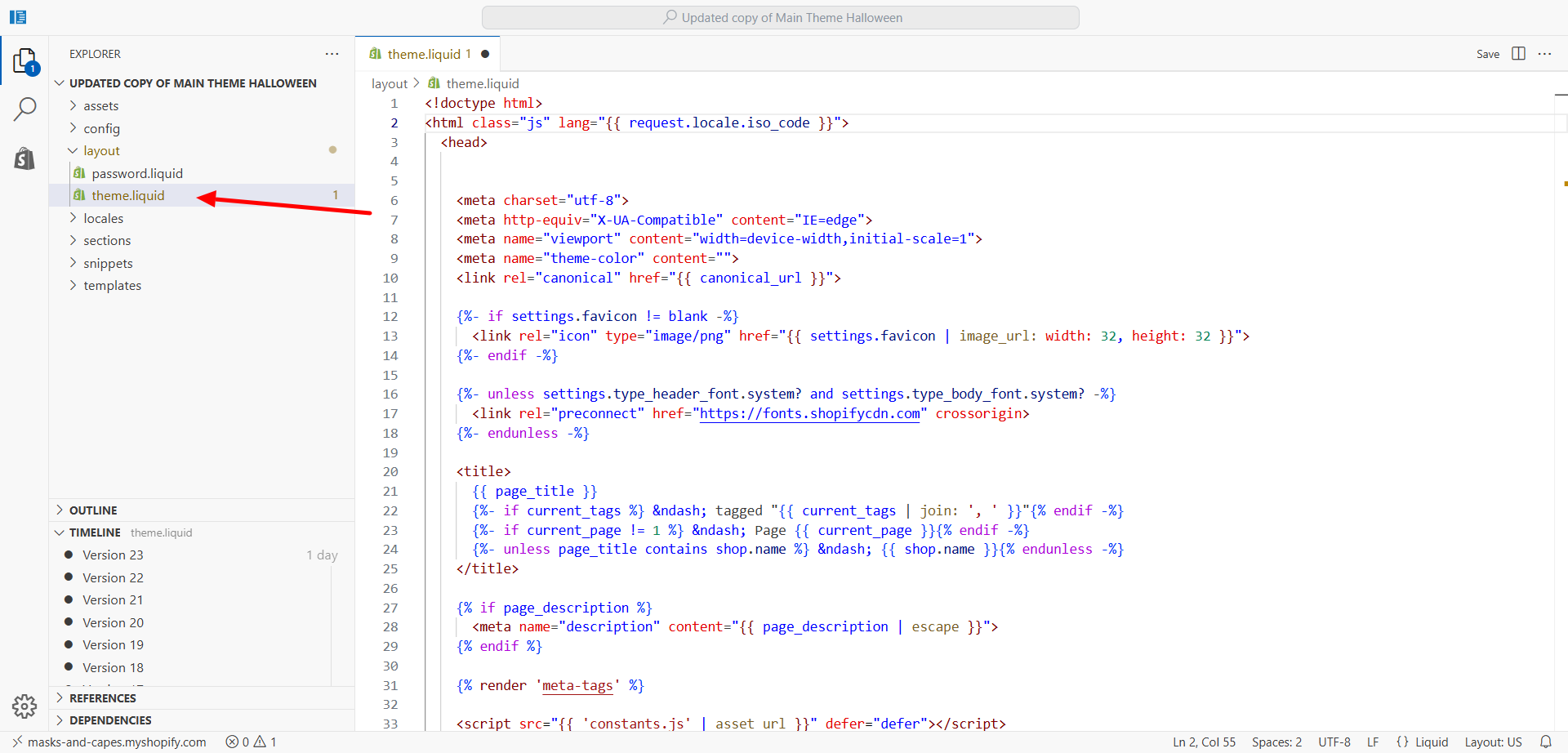
Step 6: Paste the copied script just before the closing <head> tag in the theme.liquid file, then click “Save” to apply the changes.
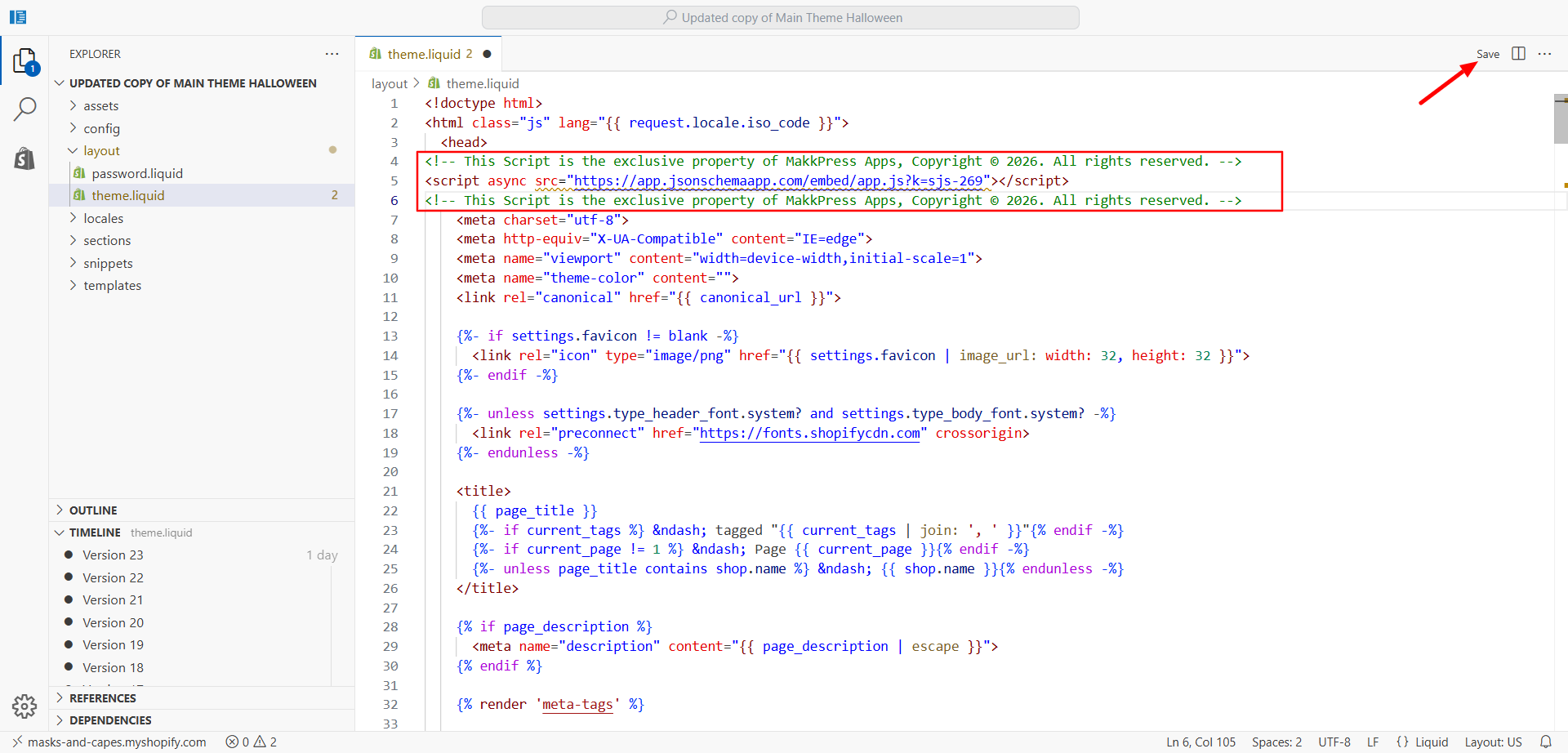
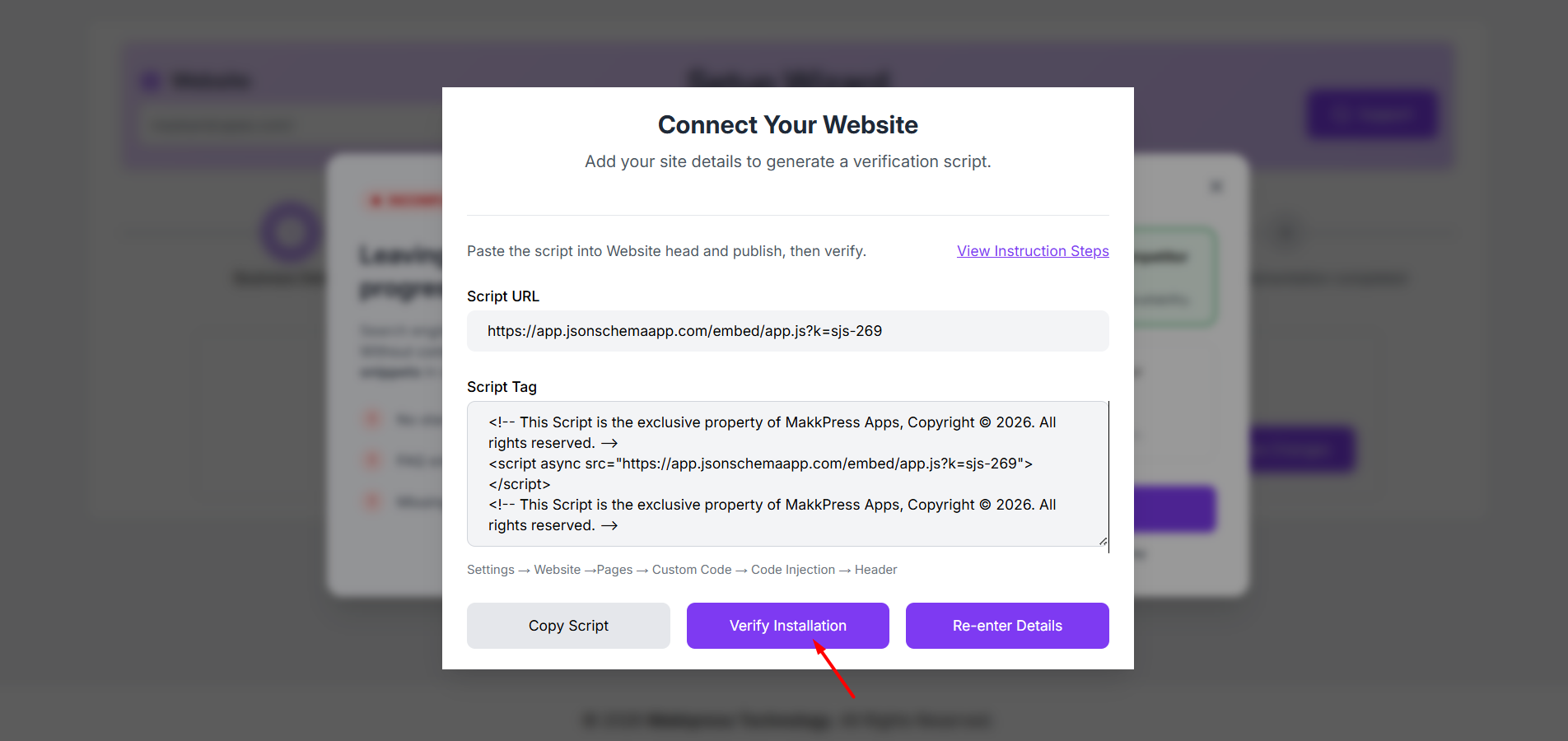
Step 7: Go back to the JSON Schema App and click “Verify Installation” to confirm that the script has been added successfully.
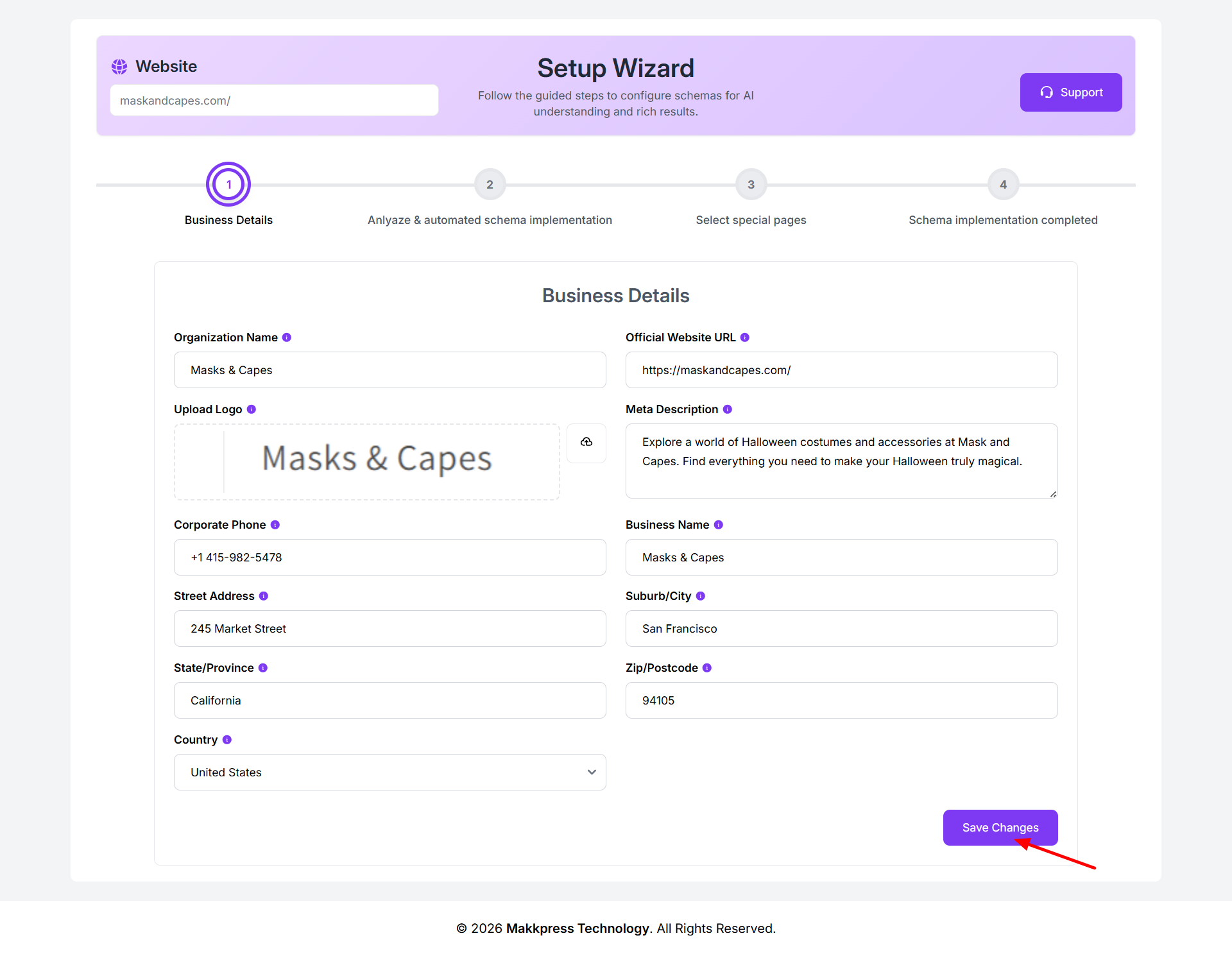
Step 8: Enter your business details such as organization name, website URL, logo, description, contact information, and address. Once completed, click “Save Changes” to continue.
Step 9: Confirm your website sitemap URL and click “Confirm & Continue” to allow the tool to scan your Shopify store.
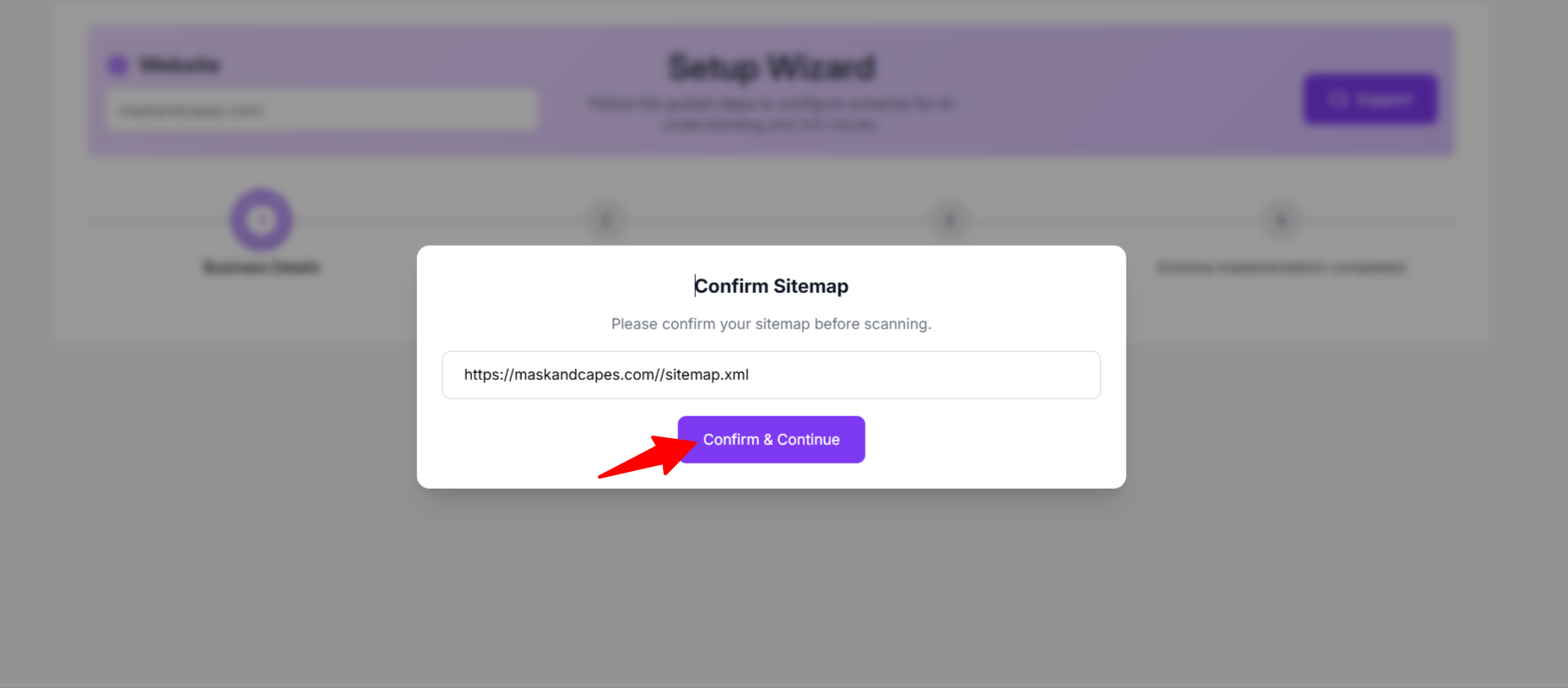
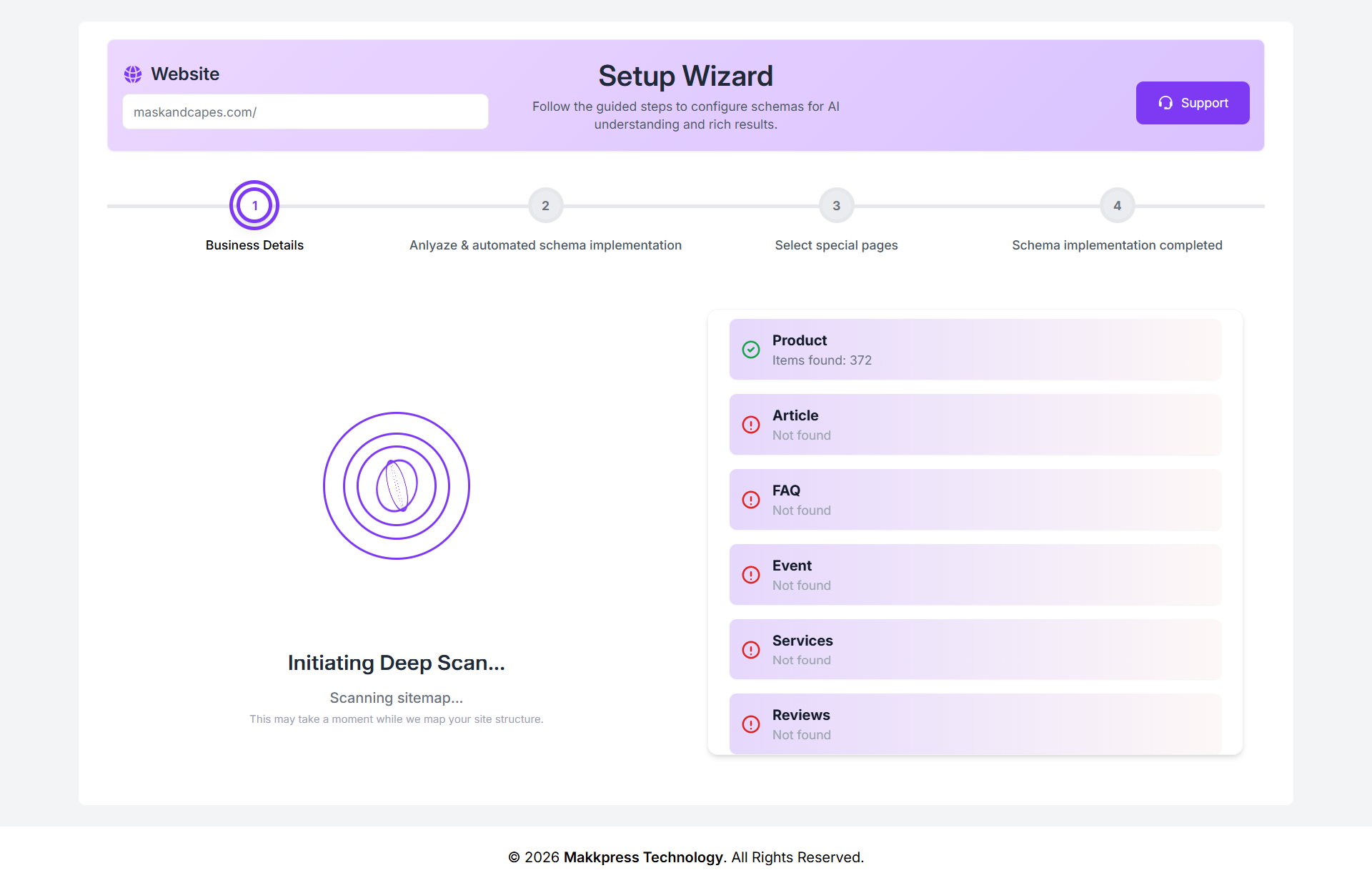
Step 10: The tool will start scanning your website to detect pages and automatically identify applicable schema types.
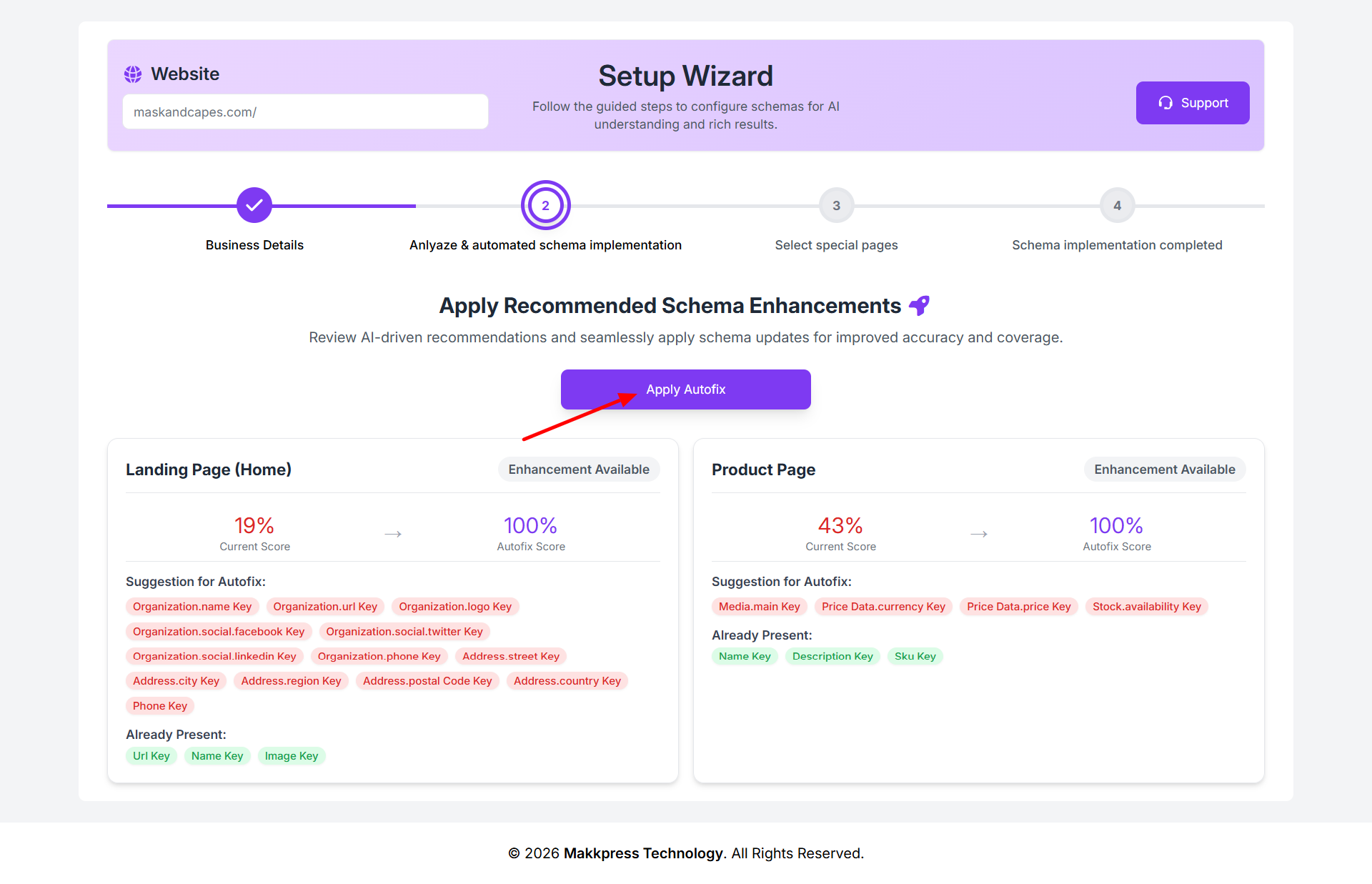
Step 11: Review the suggested schema improvements and click “Apply Autofix” to automatically implement the recommended updates.
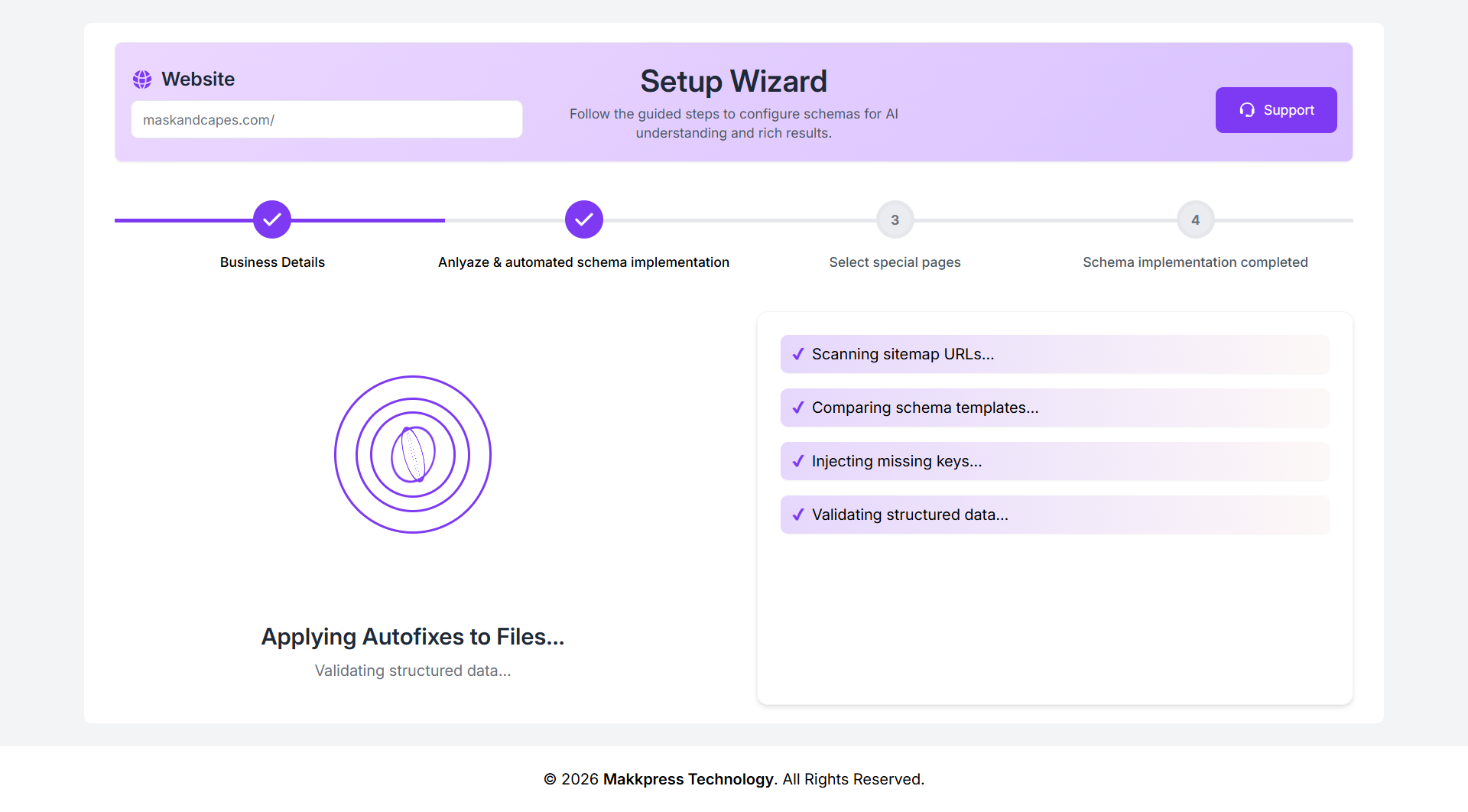
Step 12: The tool will apply fixes and optimize your structured data automatically. Wait for the process to complete.
Step 13: Select important page URLs like About Us, Contact Us, and FAQ from the dropdowns. You can add more pages if needed or skip optional ones, then click “Continue.”
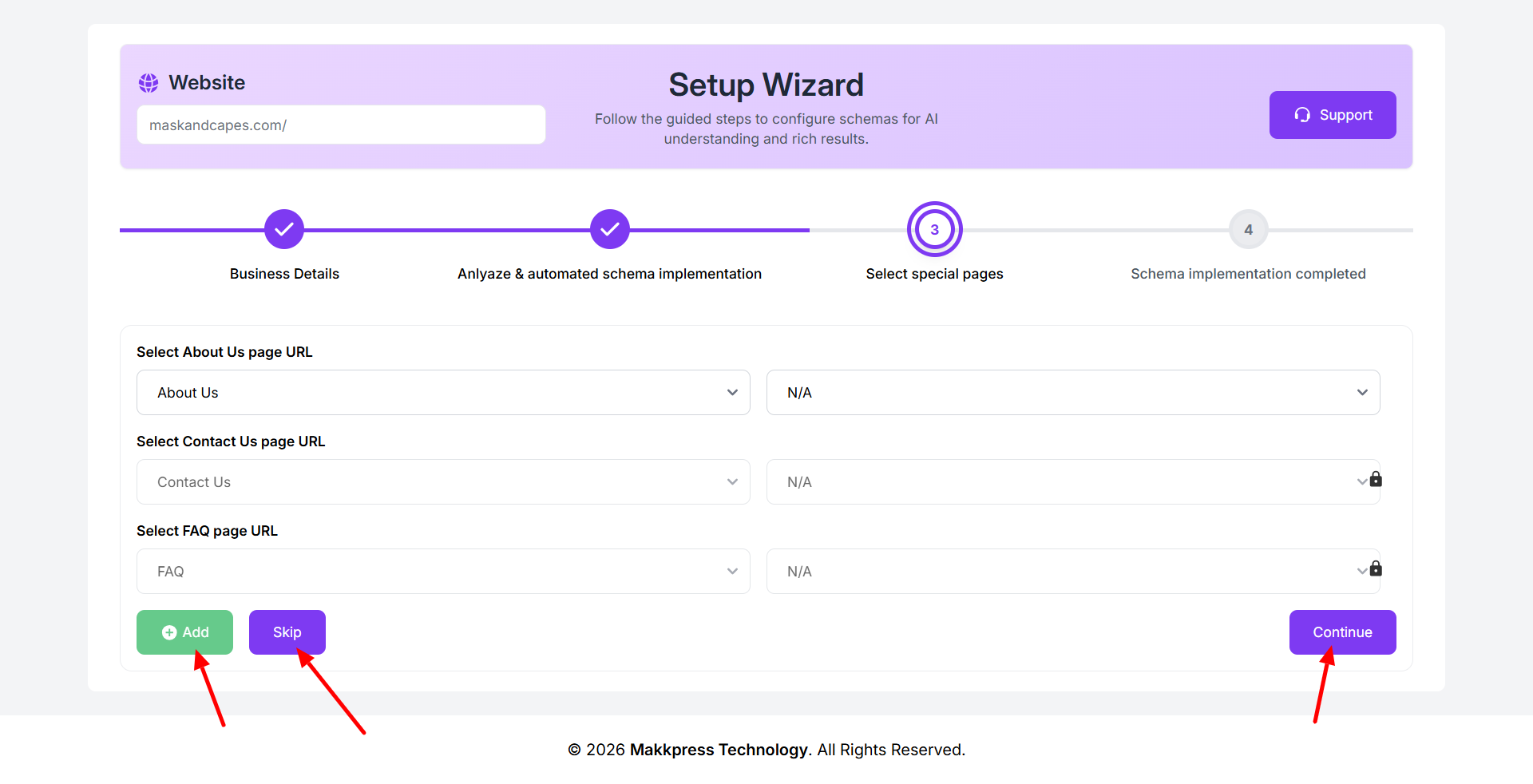
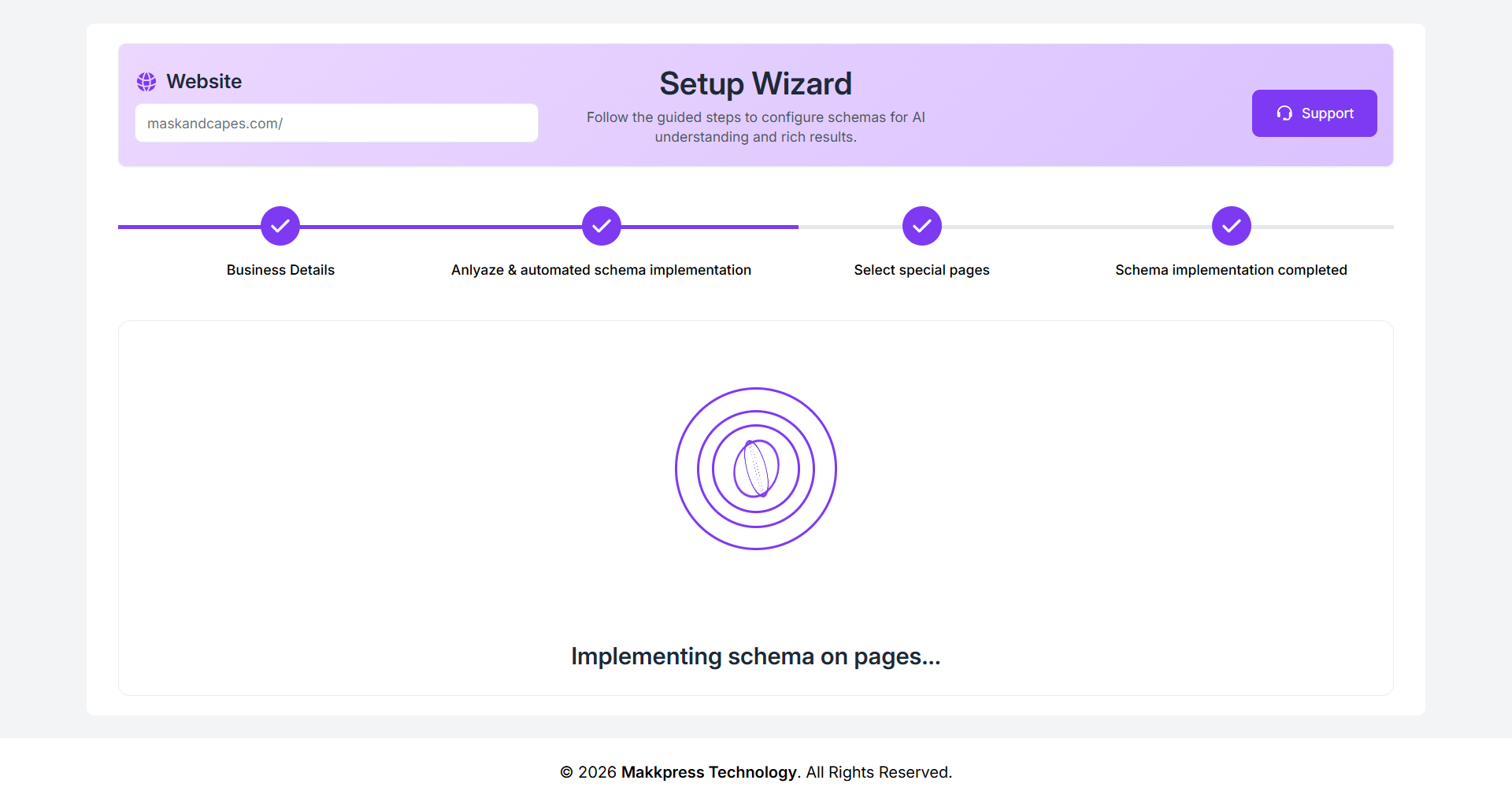
Step 14: The app will now implement schema across your selected pages. Once completed, your setup is ready to use.
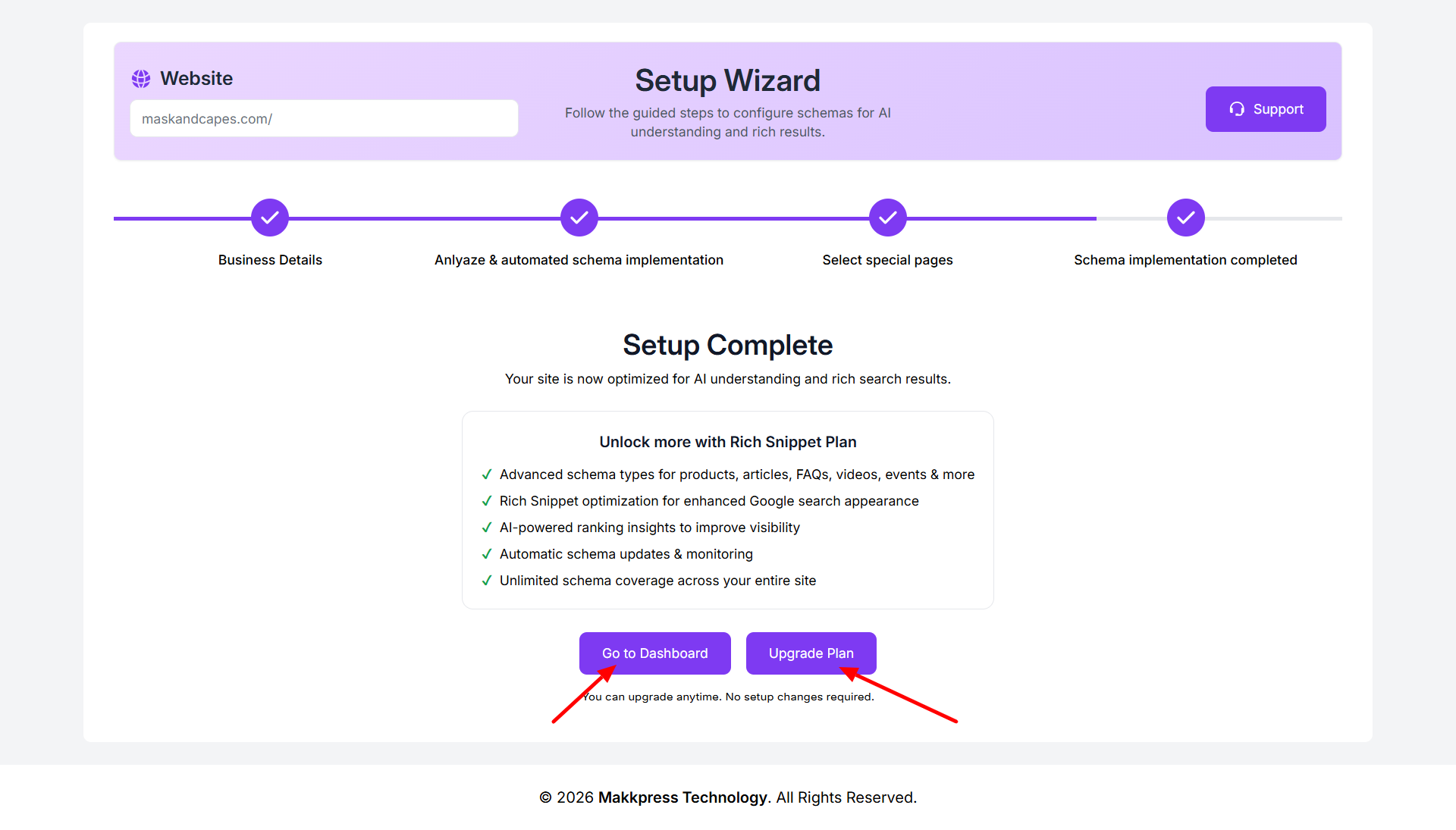
Step 15: Your setup is now complete. Click “Go to Dashboard” to manage your schema settings or choose “Upgrade Plan” to access additional features.
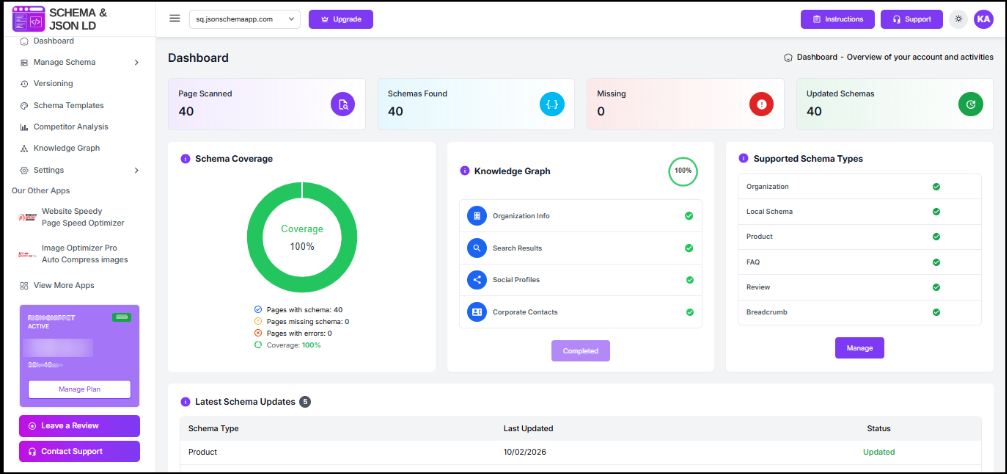
Step 16: After setup, you’ll be redirected to the dashboard where you can track schema coverage, monitor performance, and manage your structured data settings.
Found this helpful?
( 11 out of 28 found helpful )