To install the JSON Schema App directly from our website on your HubSpot website, follow these steps:
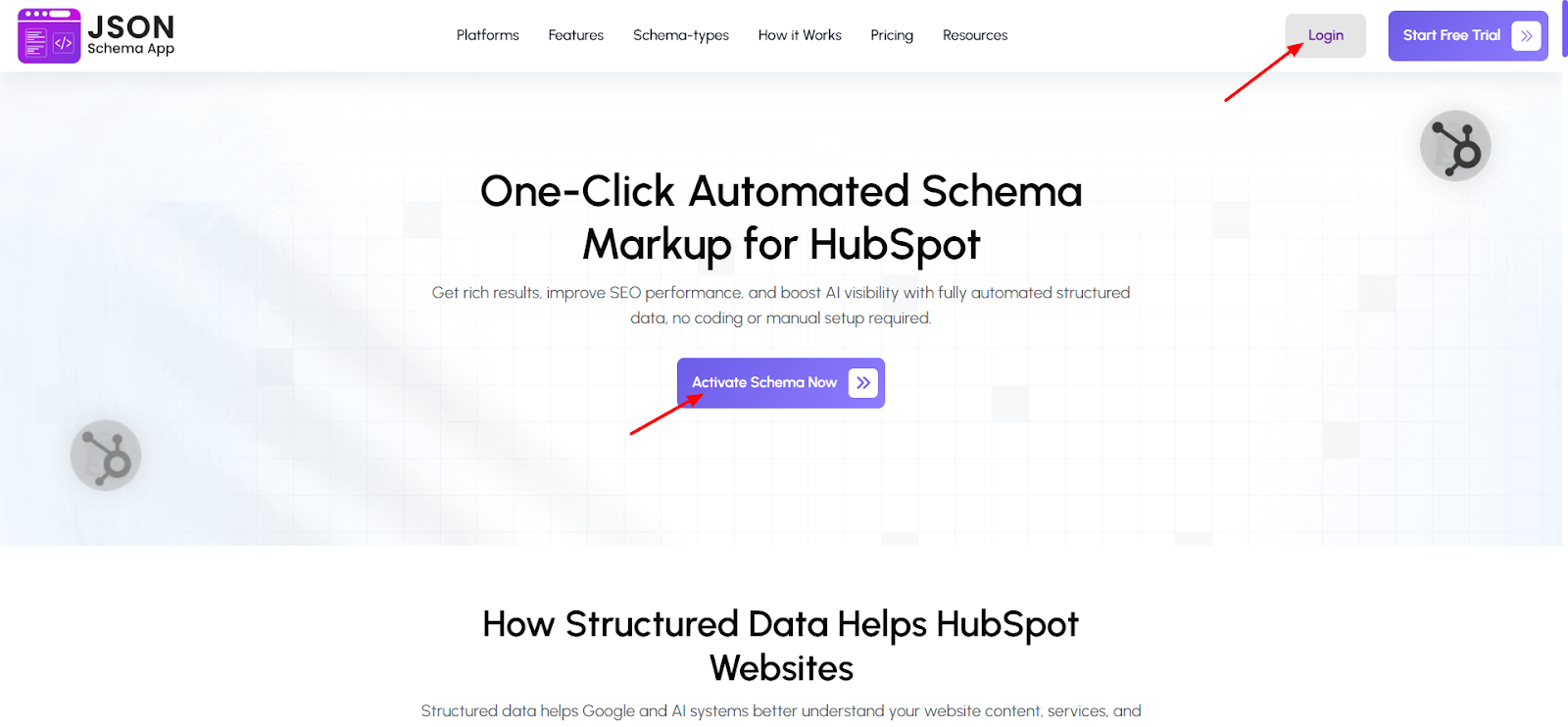
Step 1: Go to the JSON Schema App website and log in to your account. If you do not have an account, click on the Activate Schema Now button and create an account.
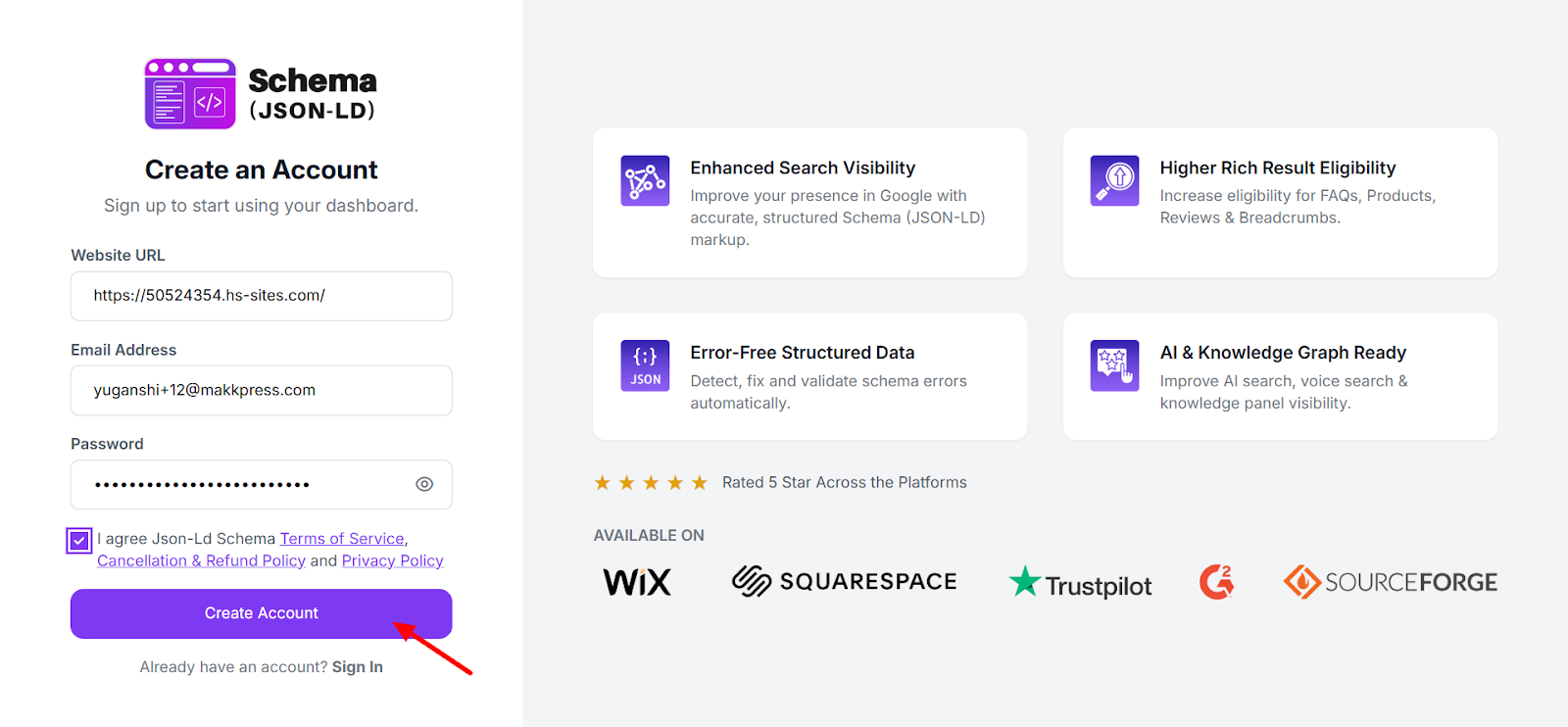
Step 2: Enter your website URL and email address, then create a password to set up your account. Once all the details are filled in, click “Create Account” to continue.
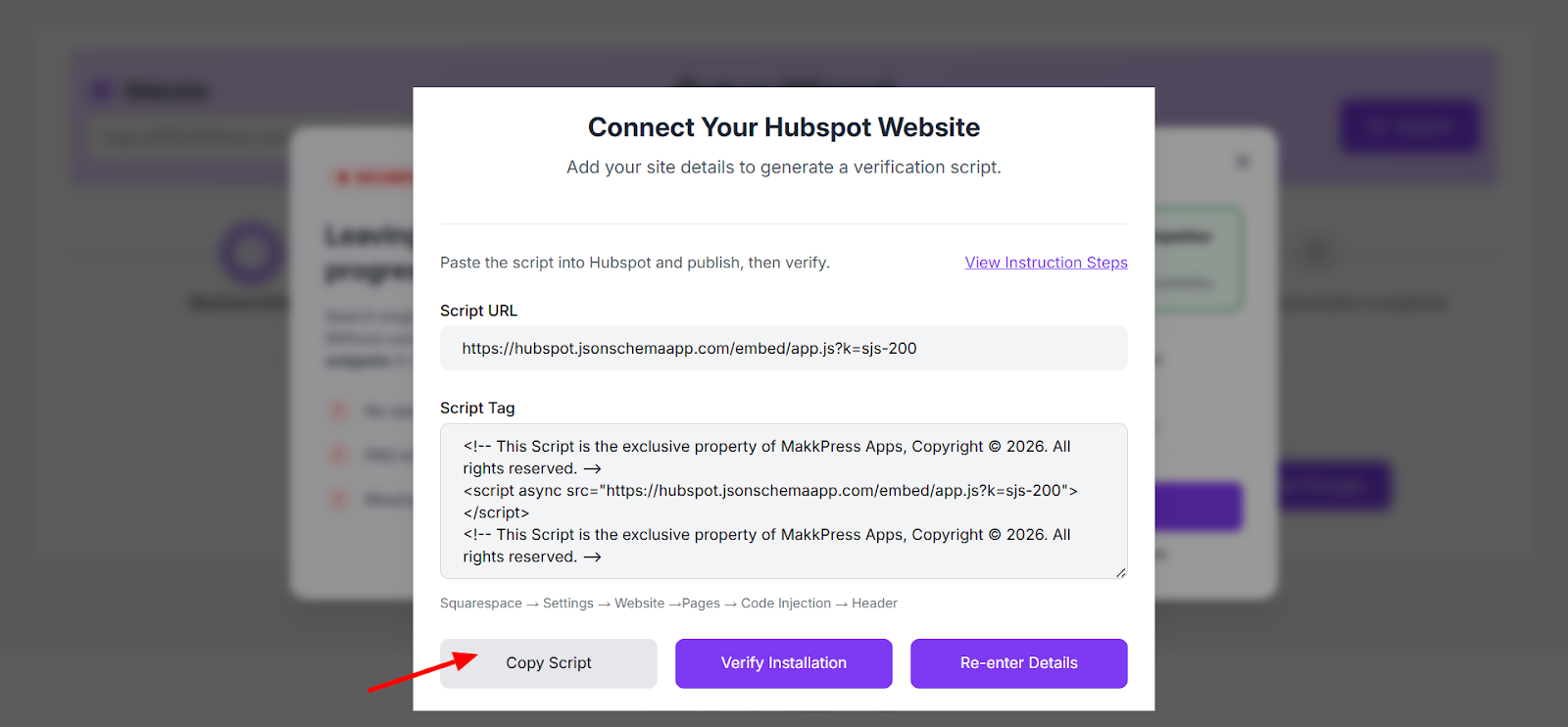
Step 3: After signing up, you’ll be taken to the Setup Wizard. Click “Copy Script” to copy the generated script tag.
You’ll need to add this script to your HubSpot store to verify and activate the JSON Schema App.
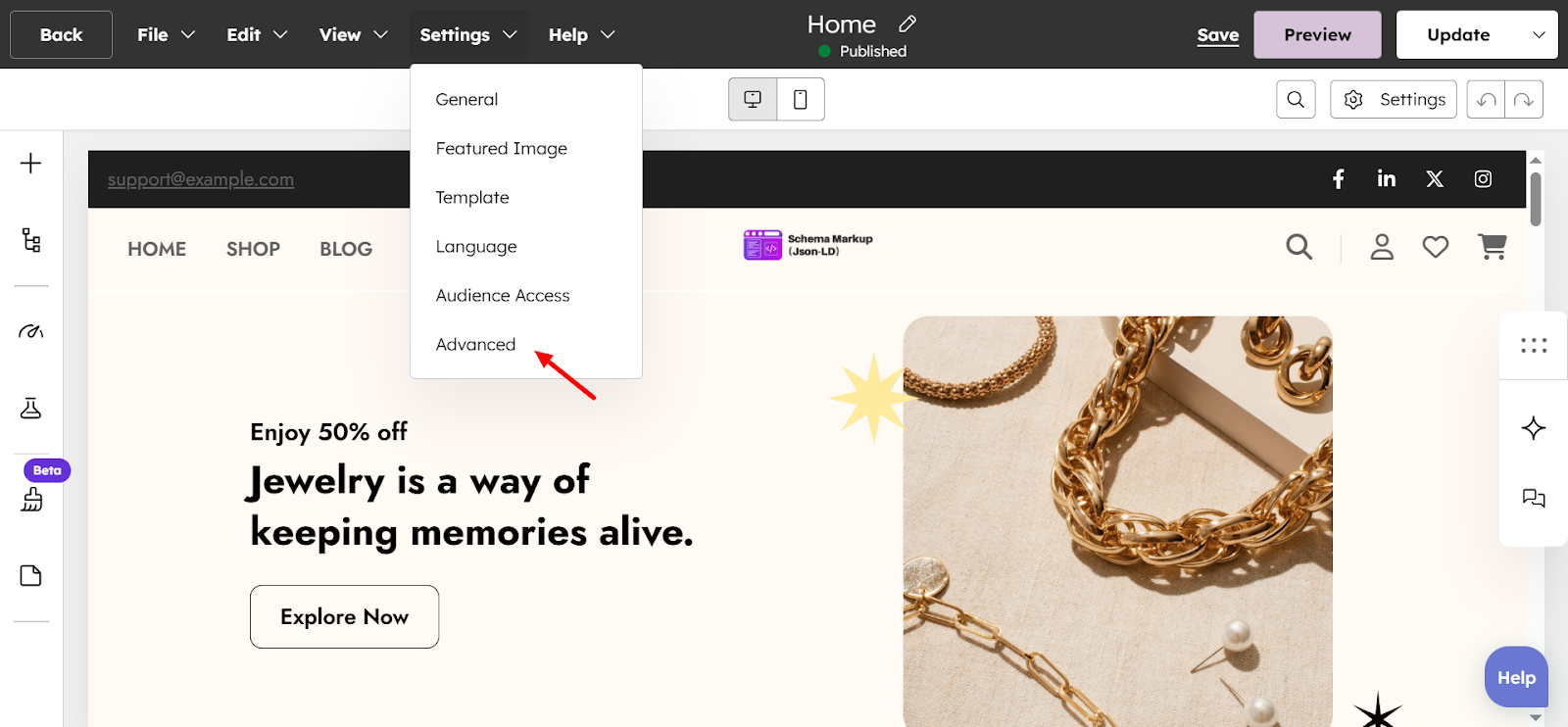
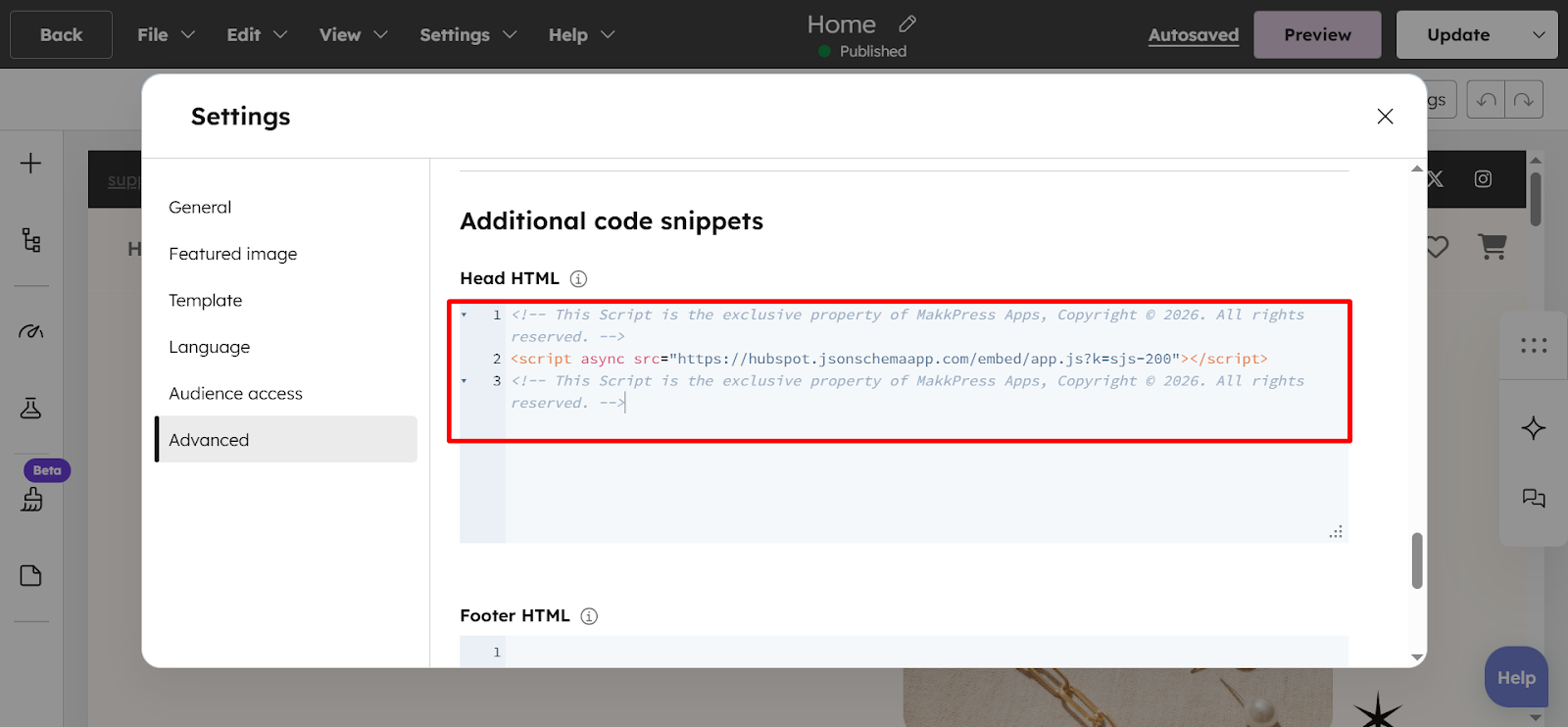
Step 4: Log in to your HubSpot Account and open your website dashboard. Click on the Settings and go to “Advanced”.
Step 5: Paste the copied script into the Head HTML section under “Additional code snippets.
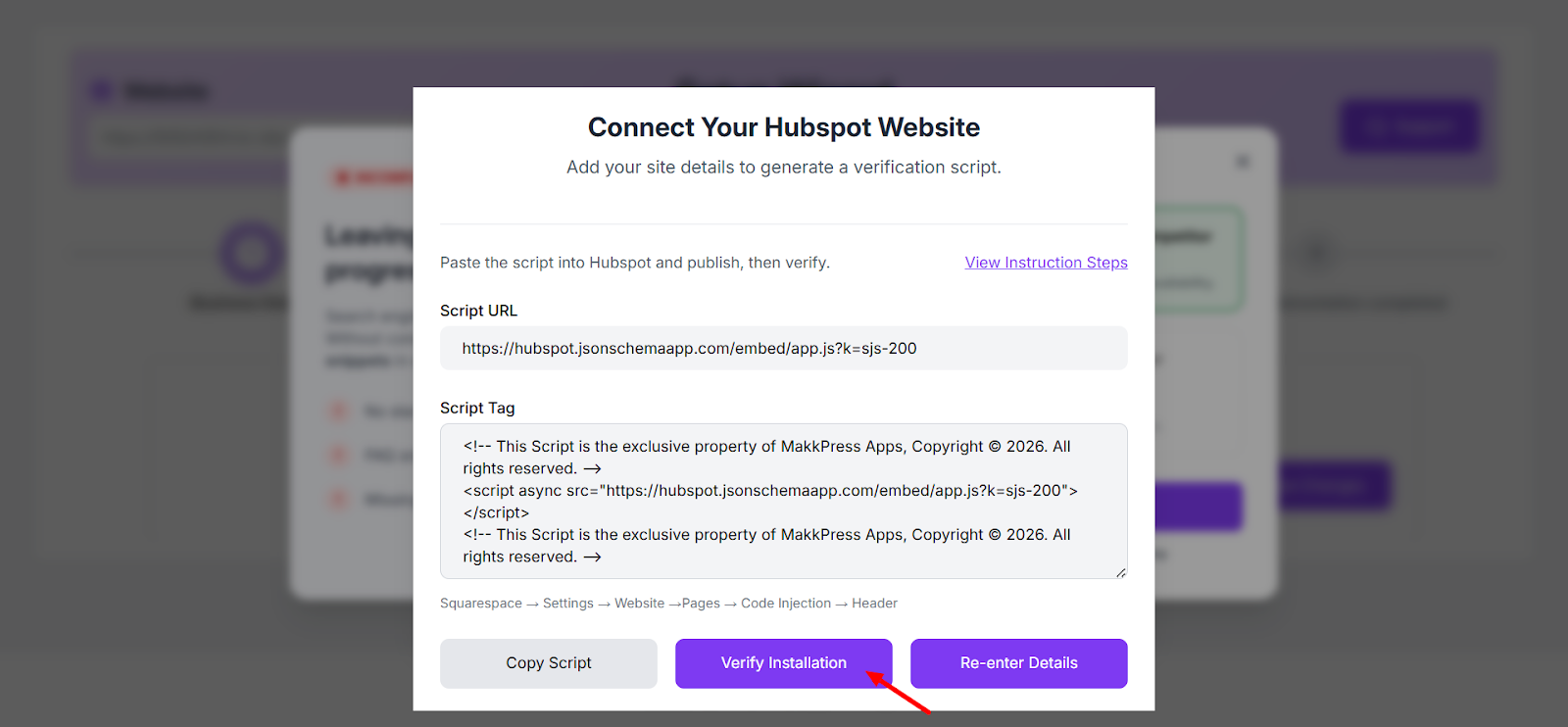
Step 6: After adding the script to your HubSpot website, return to the verification screen and click “Verify Installation”. This will confirm whether the script has been successfully installed and is working correctly on your HubSpot site.
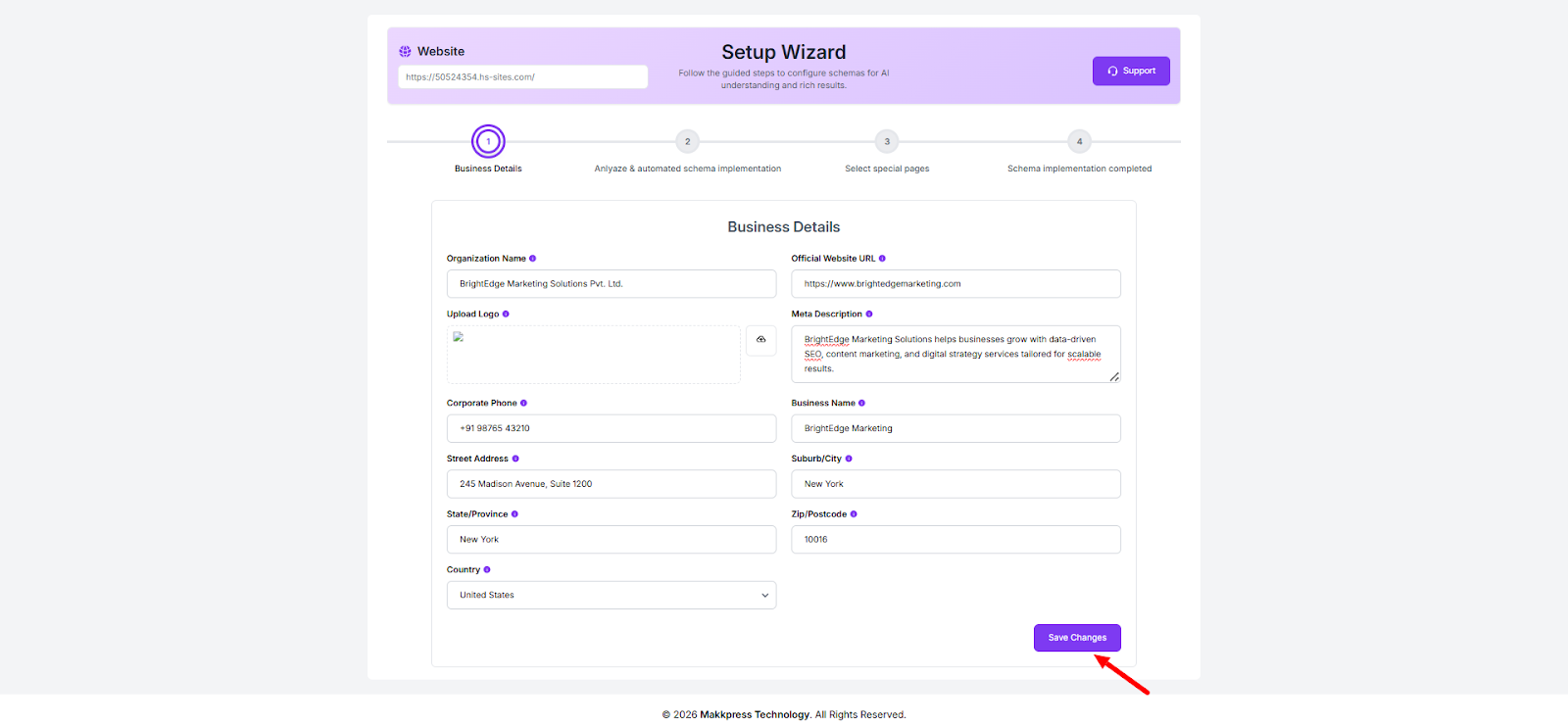
Step 7: In the Setup Wizard, fill in your Business Details including organization name, website URL, meta description, contact information, and address. Once all the required fields are completed, click “Save Changes” to proceed to the next step.
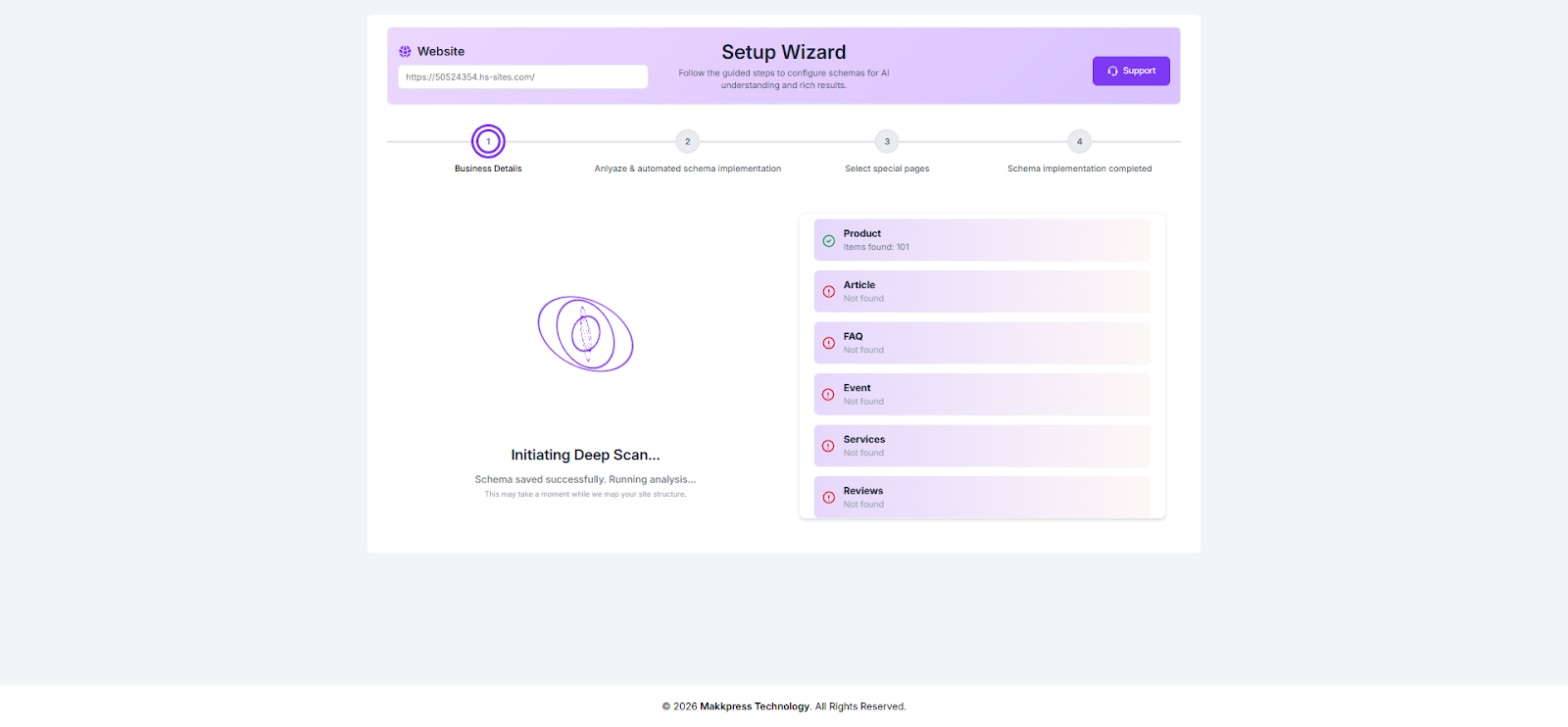
Step 8: After saving your business details, the tool will automatically start a deep scan of your website to analyze existing schema and identify missing elements.
Step 9: Once the analysis is complete, review the recommended schema improvements and click “Apply Autofix” to automatically implement enhancements across your pages.
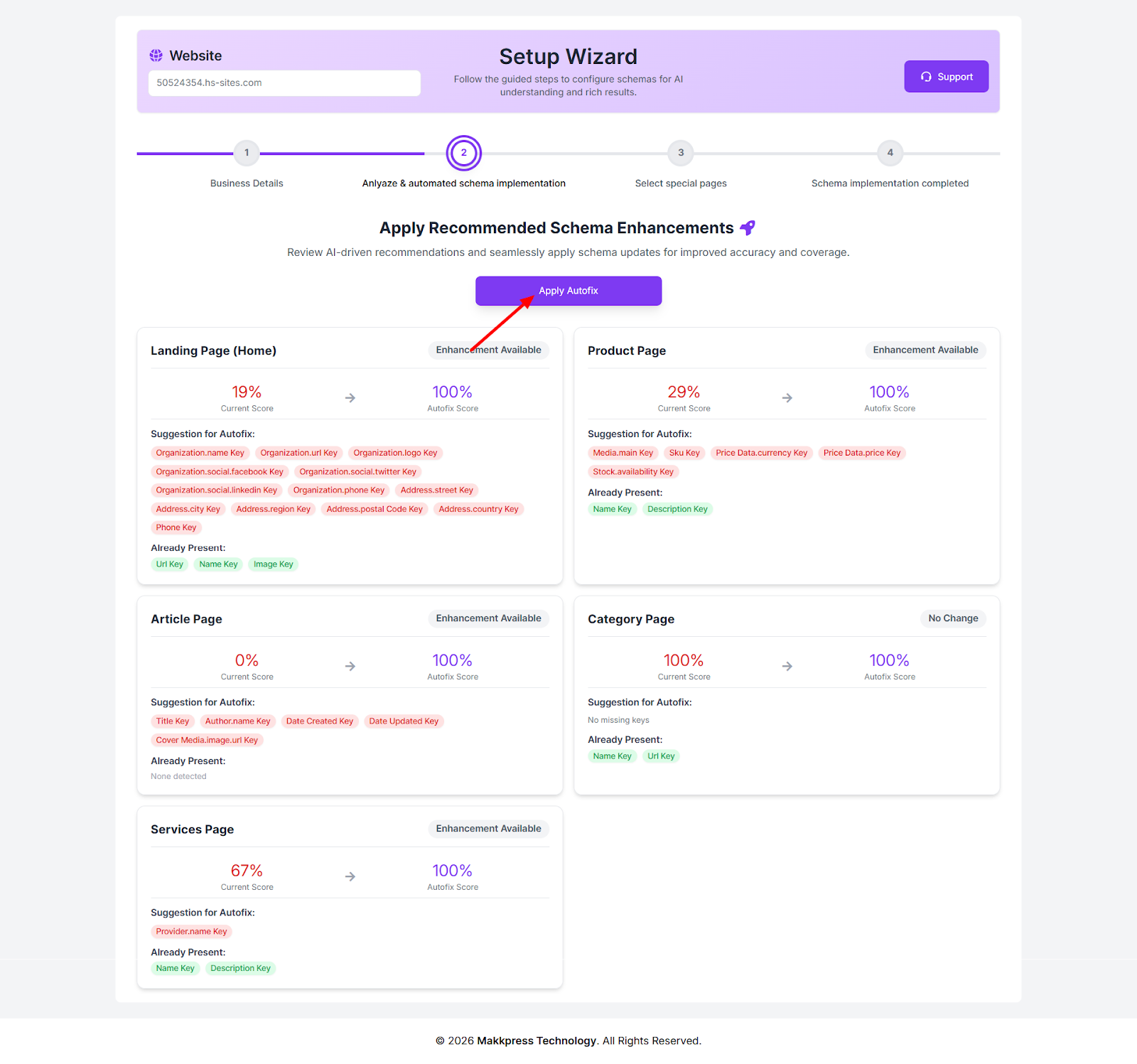
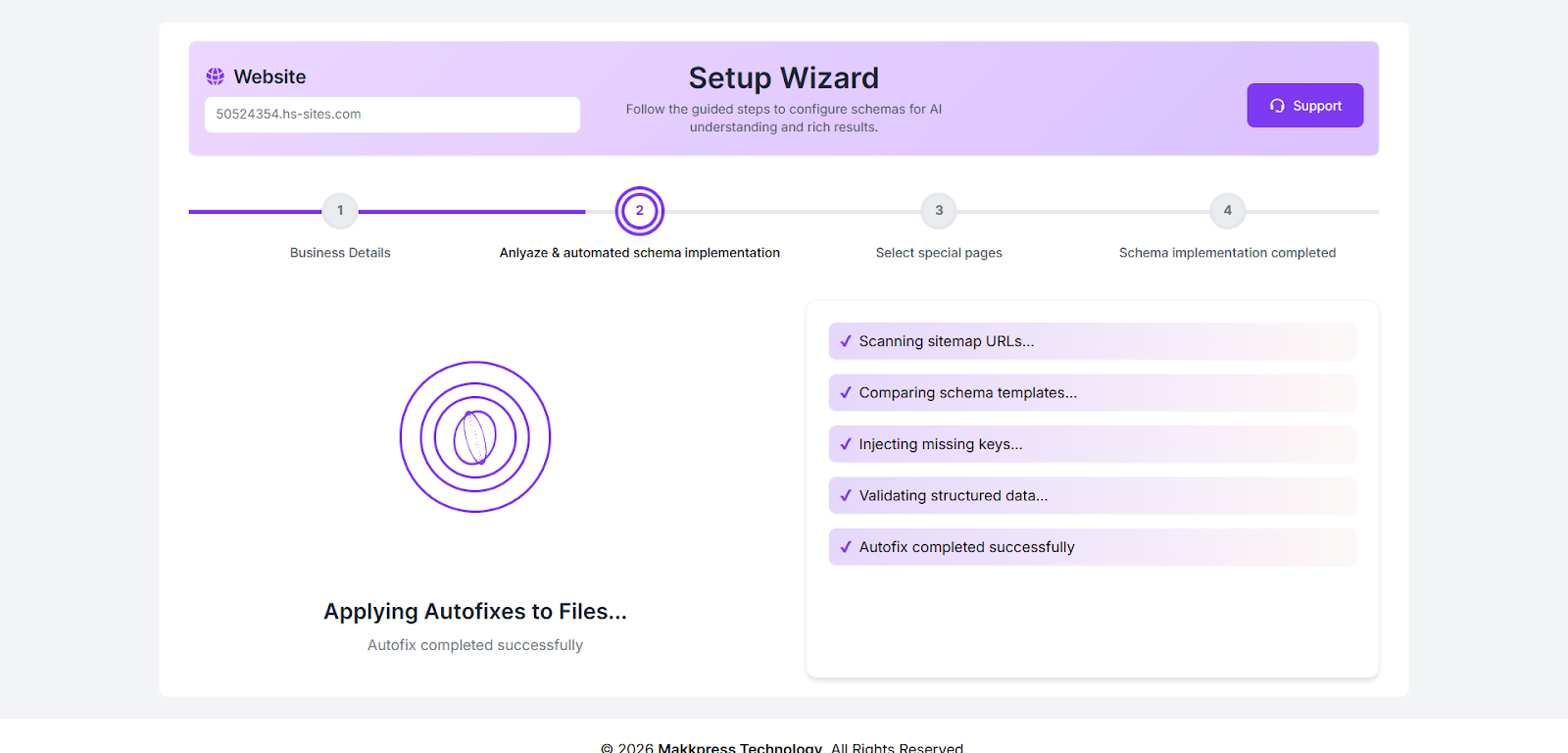
Step 10: Once the process is complete, your schema is applied to your HubSpot website. The app automatically scans, validates, and adds structured data to improve search visibility.
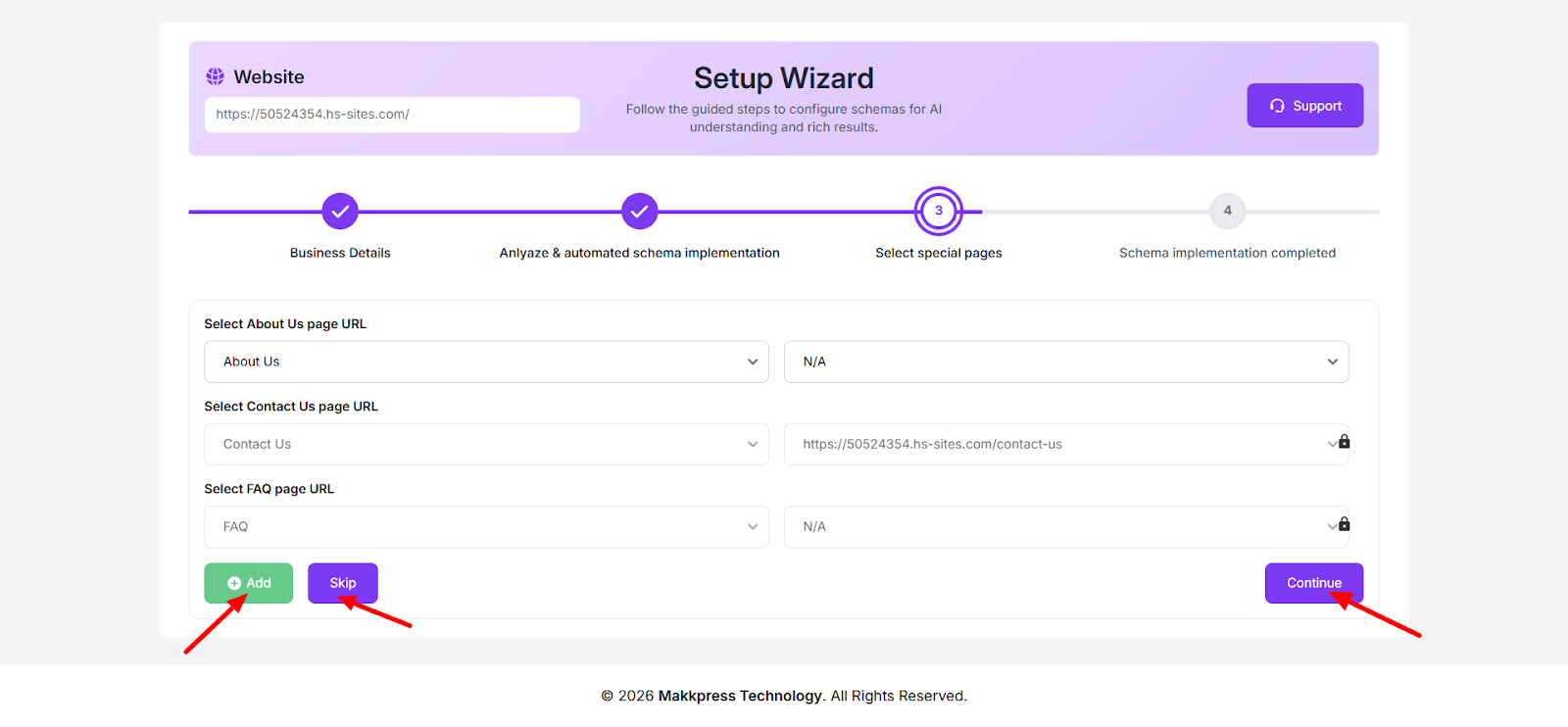
Step 11: Select key pages like About, Contact, and FAQ from your HubSpot website for targeted schema implementation. You can skip this step if not required, then click Continue.
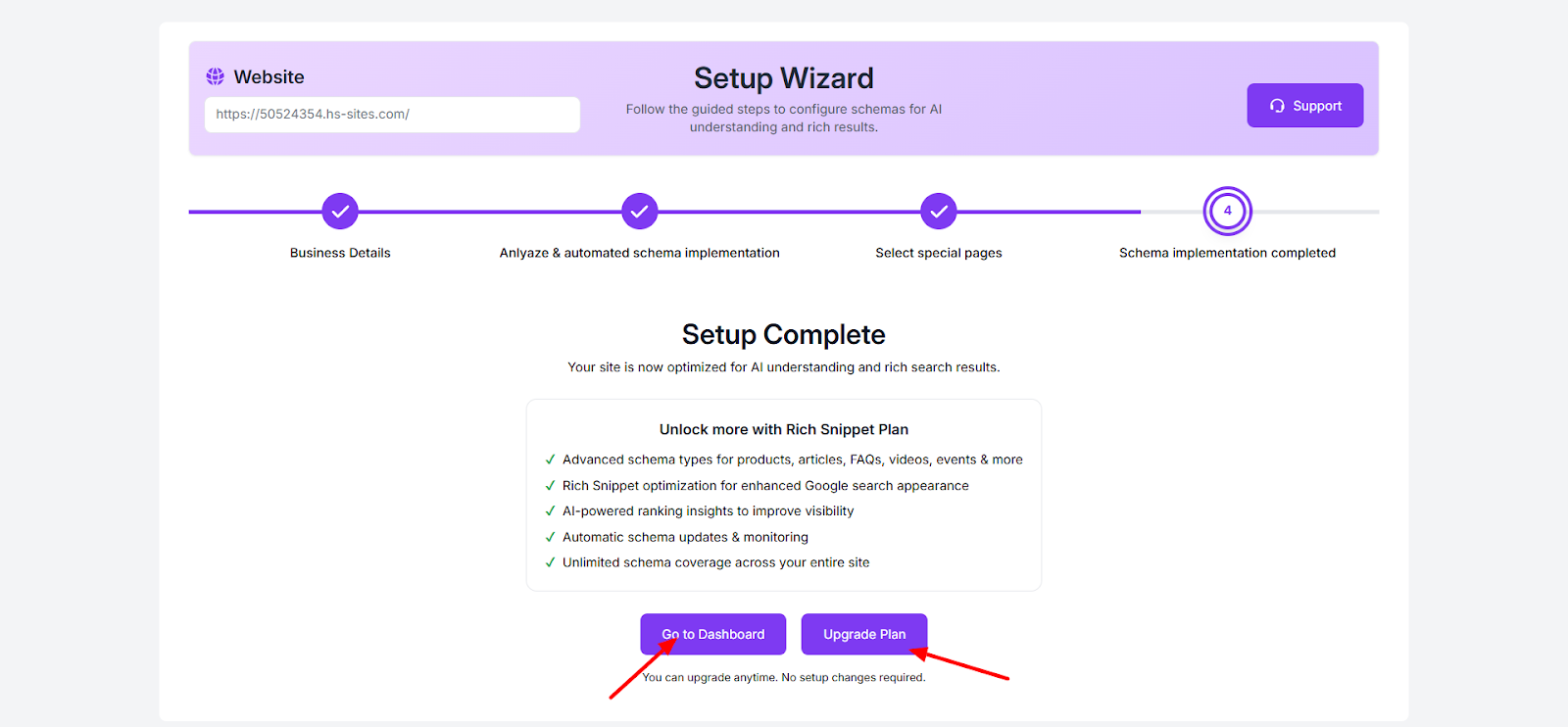
Step 12: Click “Go to Dashboard” to manage your schema settings, or choose “Upgrade Plan” to access advanced features and enhanced rich results.
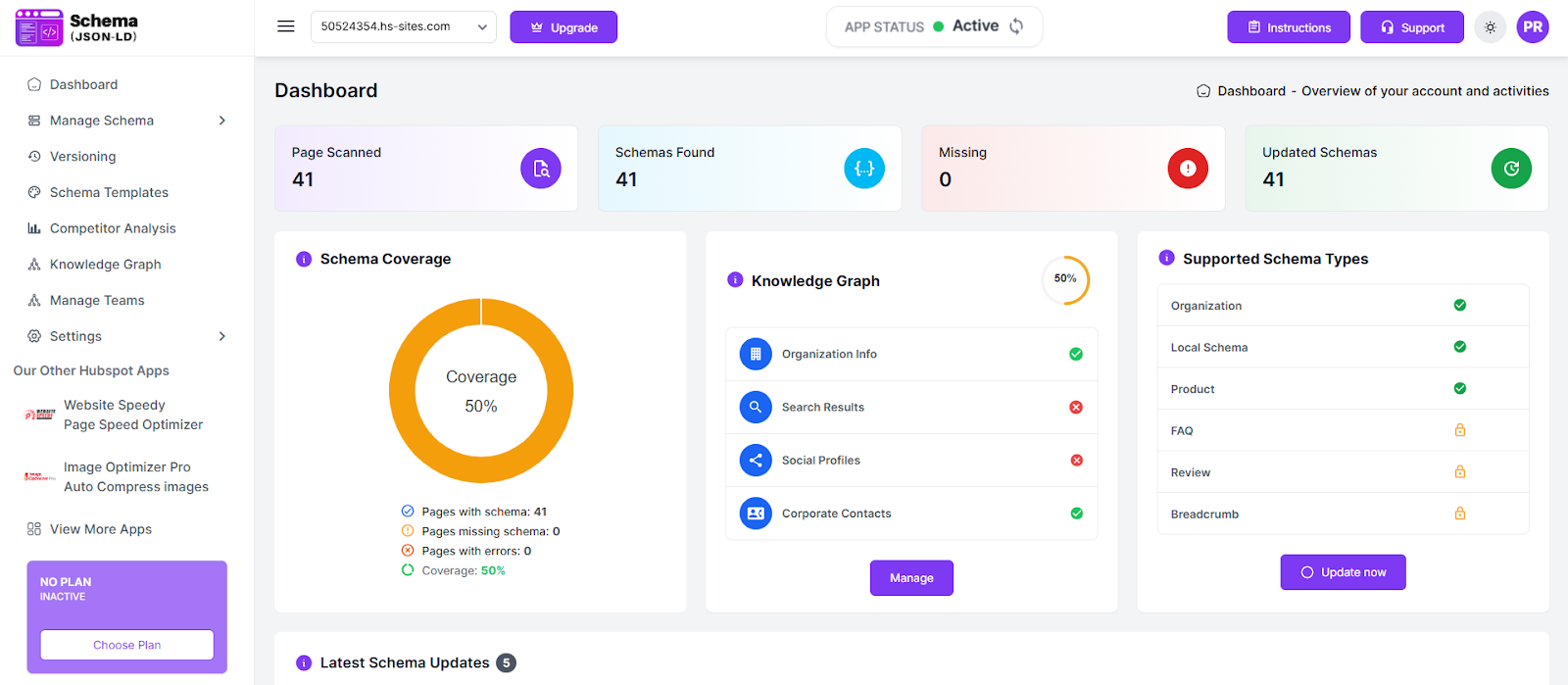
Step 13: After setup, you’ll be redirected to your dashboard where you can track schema coverage, view detected schemas, and manage structured data across your HubSpot website.
Found this helpful?
( 8 out of 25 found helpful )