To set up the JSON Schema App on your Jimdo website, follow these steps:
Step 1: Visit the JSON Schema App website and log in to your account. If you don’t have an account, click “Start Free Trial” to create one and begin.
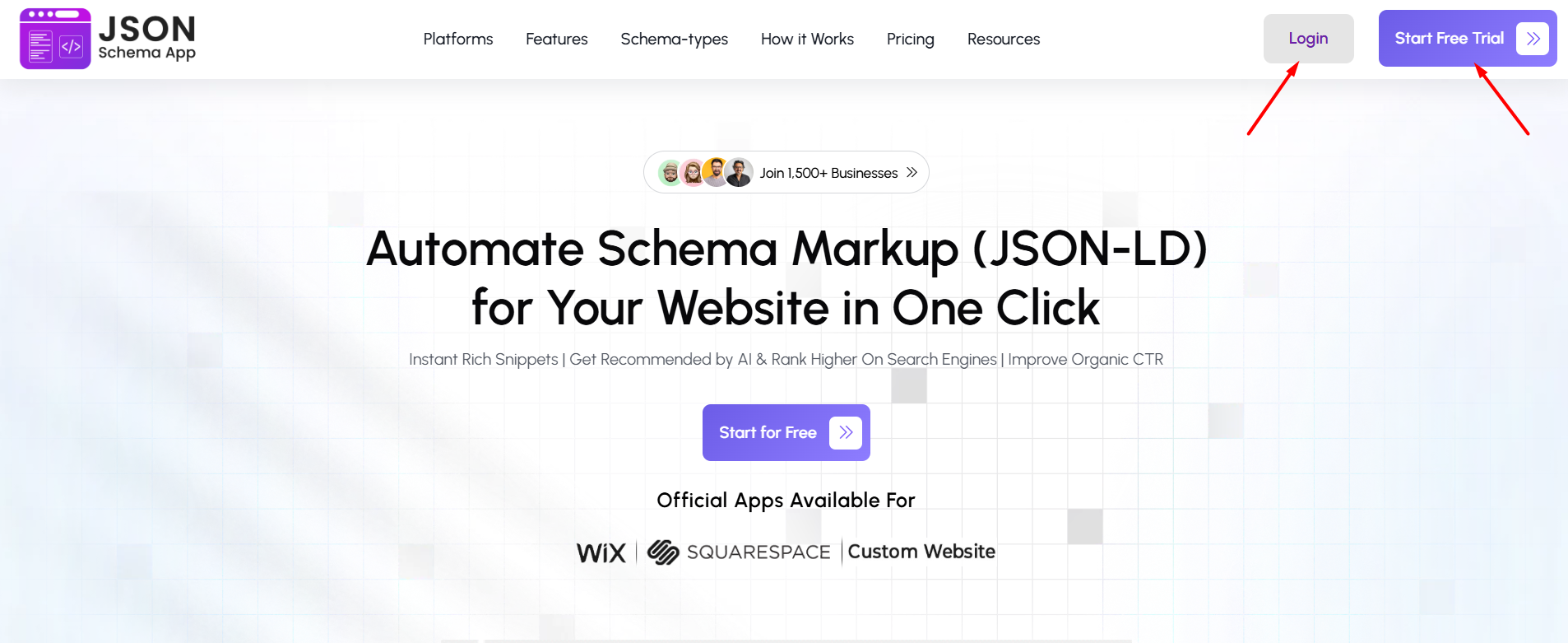
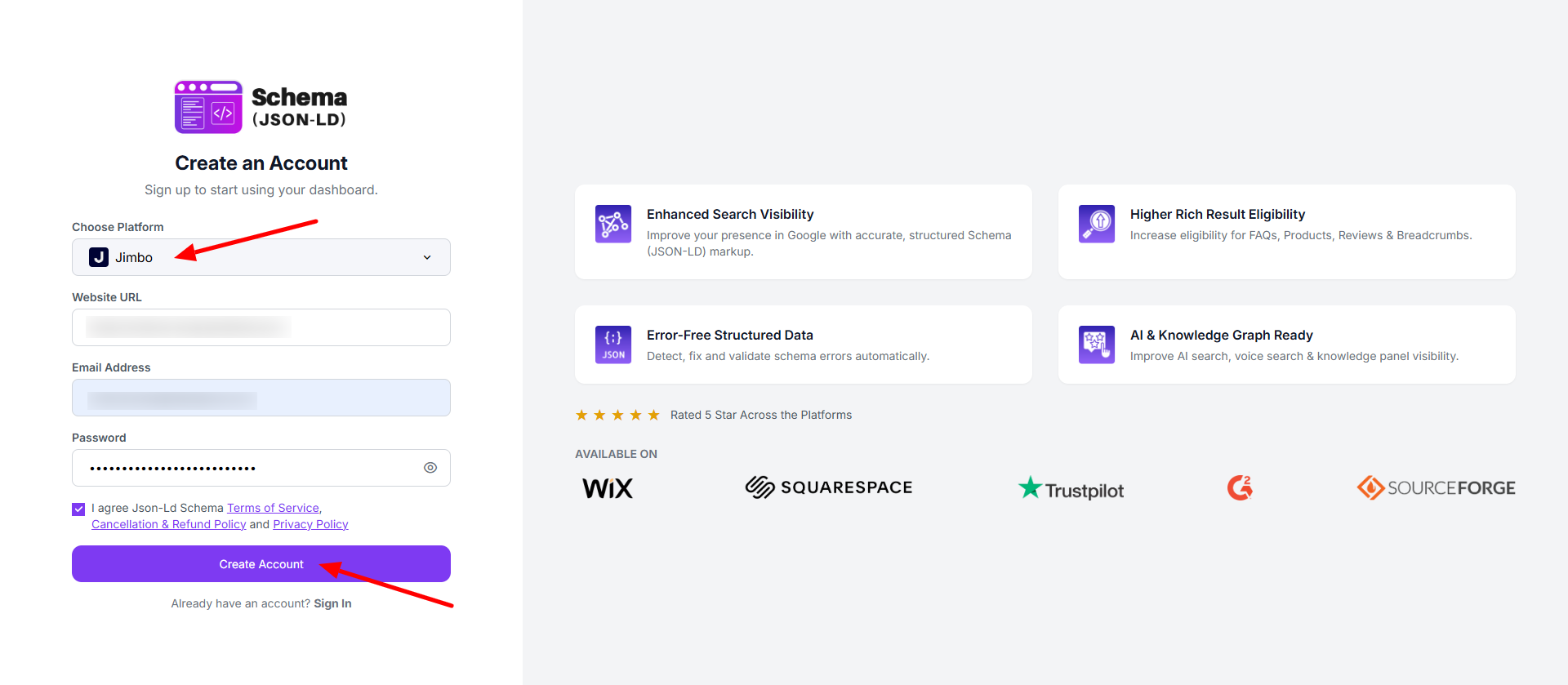
Step 2: Select Jimdo as your platform, enter your website URL, email address, and create a password. Accept the terms and click “Create Account” to continue.
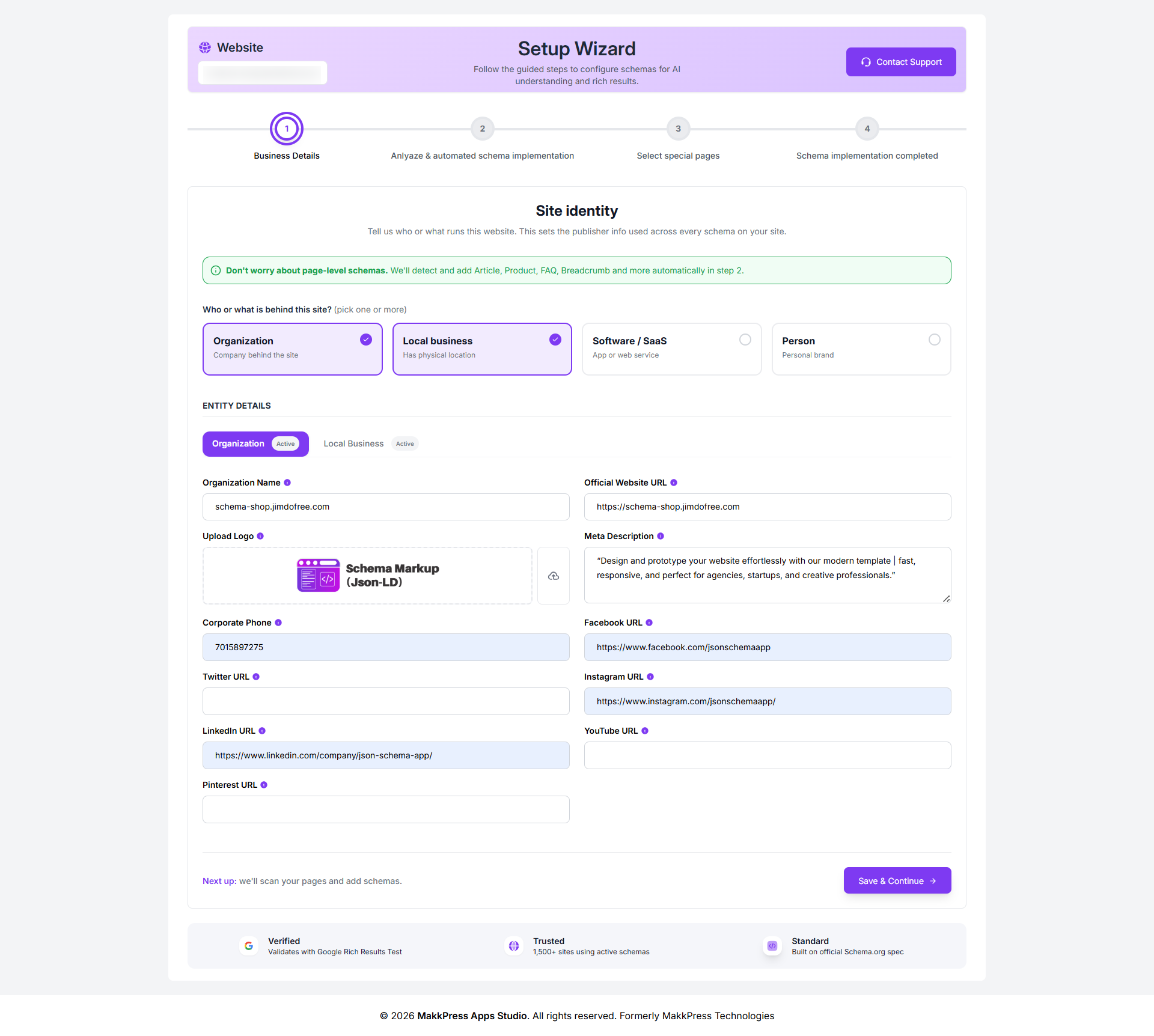
Step 3: Enter your business details such as organization name, website URL, logo, description, contact information, and address. Then click “Save Changes” to proceed.
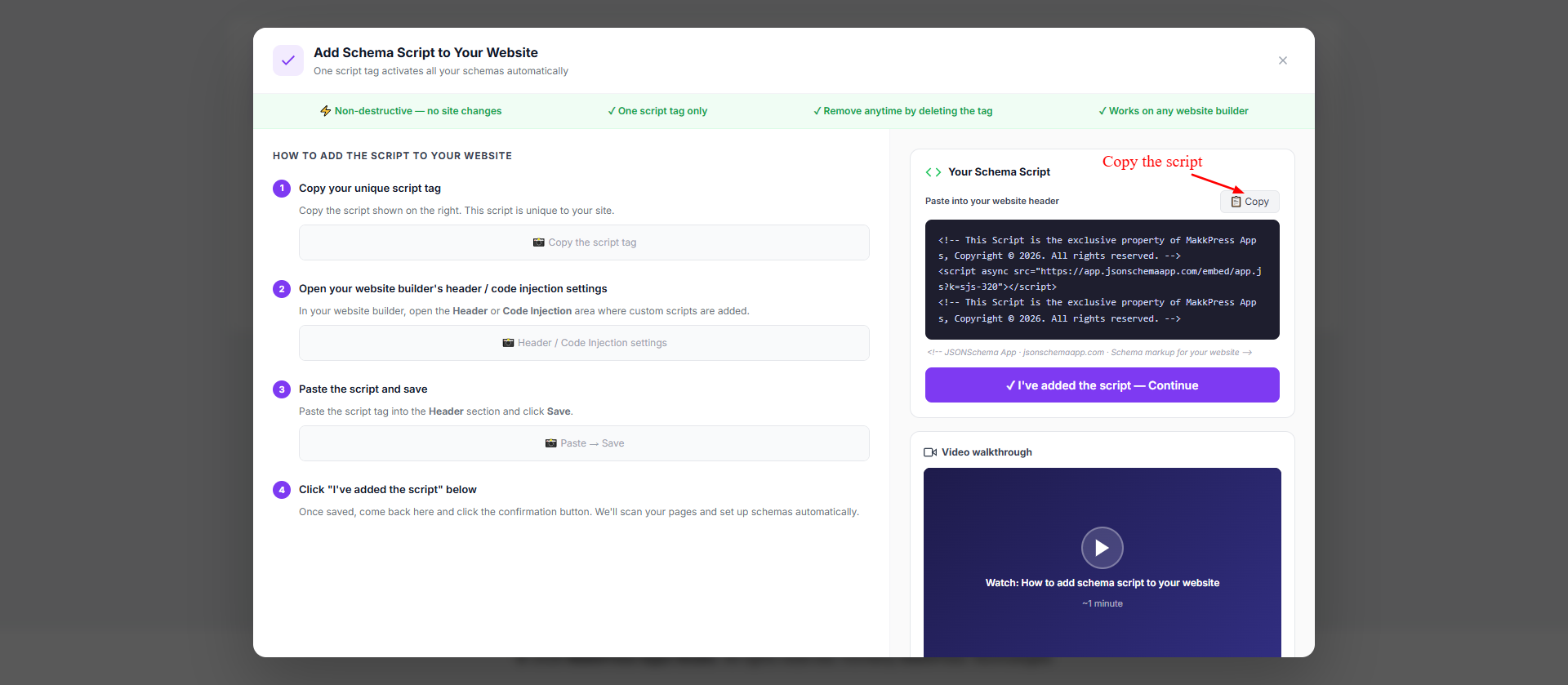
Step 4: In the setup screen, click “Copy Script” to copy the generated script. This code will be added to your Jimdo website.
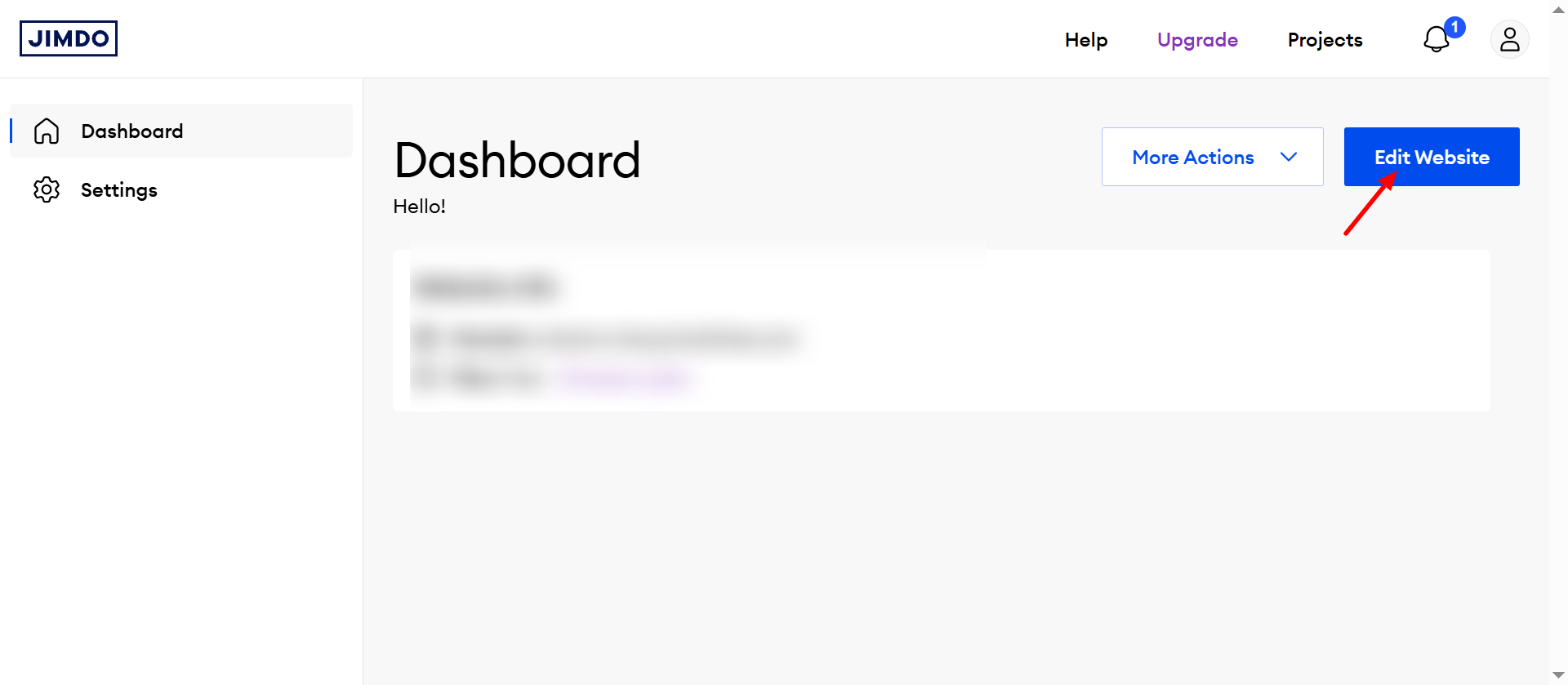
Step 5: Log in to your Jimdo Dashboard and open your project. Click the Edit Website button in the top-right corner to access the website editor.
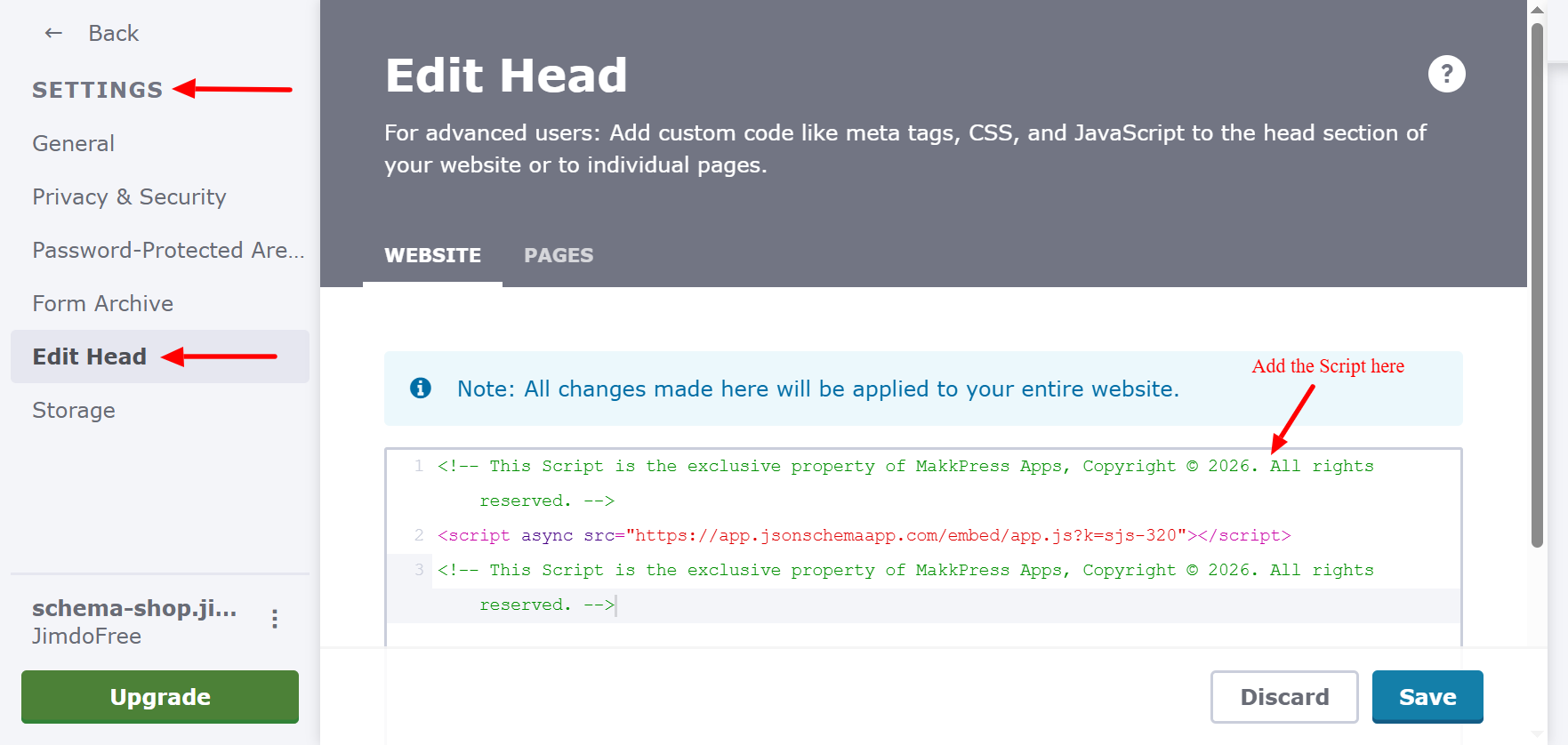
Step 6: In the left sidebar, go to Settings and select Edit Head. Under the Website tab, paste the copied script into the code editor section, then click Save to apply the changes site-wide.
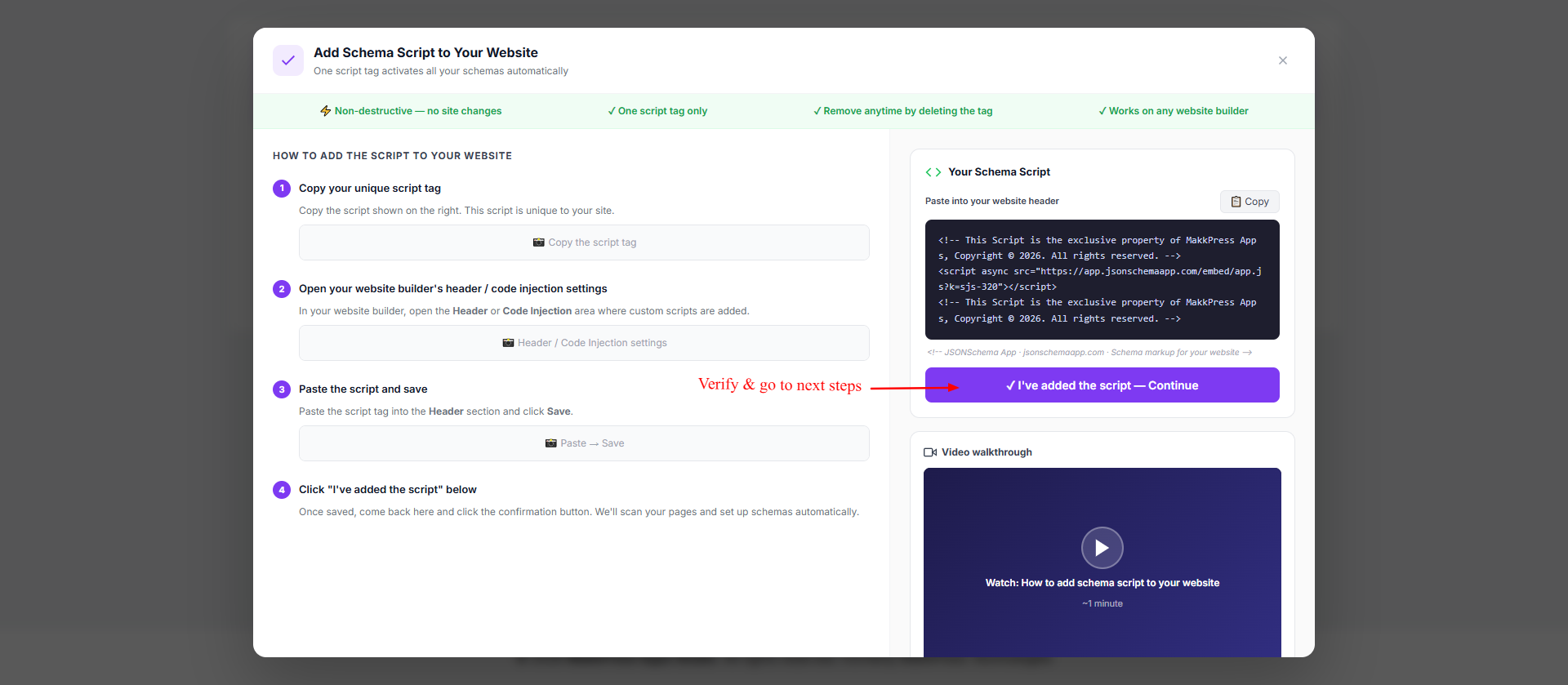
Step 7: Return to the JSON Schema App and click “I’ve added the script — Continue” to verify the installation and proceed to the next steps.
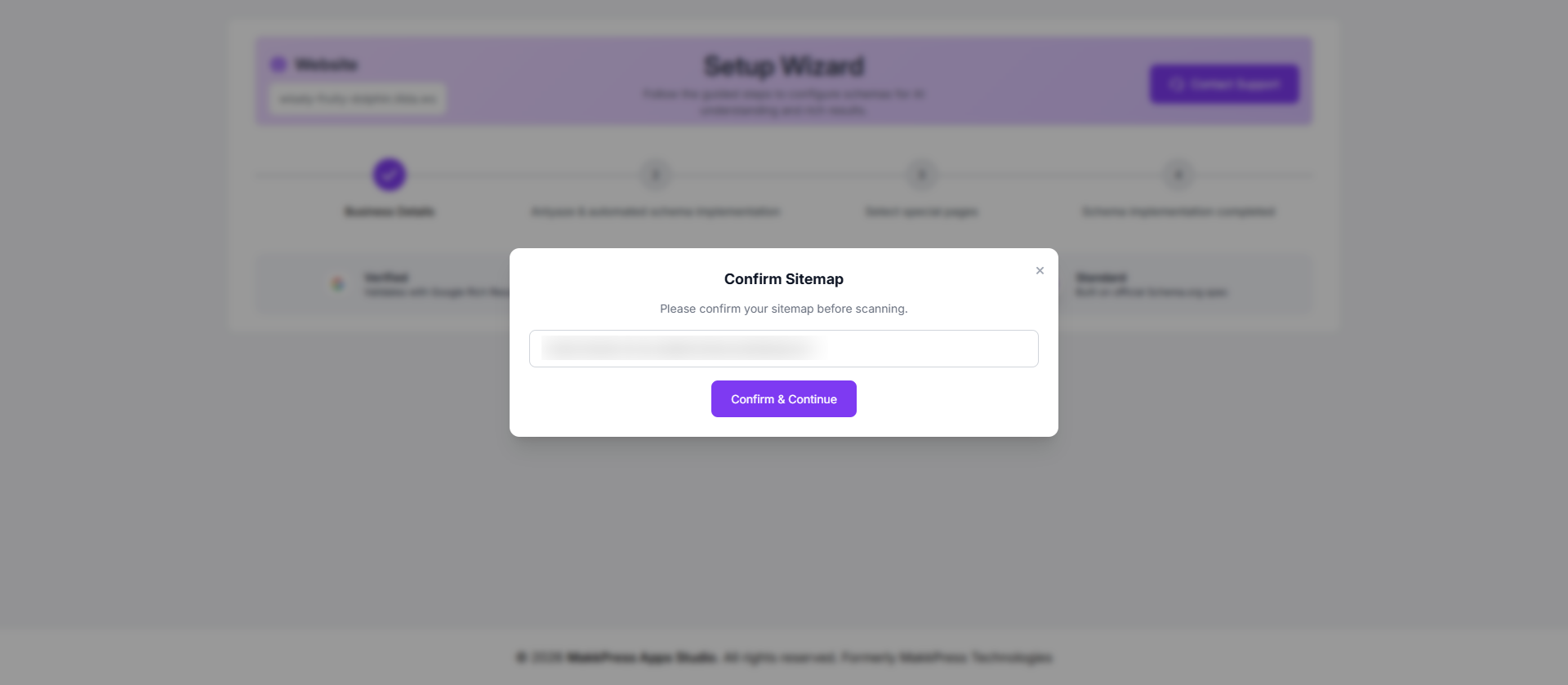
Step 8: Confirm your website sitemap URL and click “Confirm & Continue” to allow the tool to scan your Jimdo website.
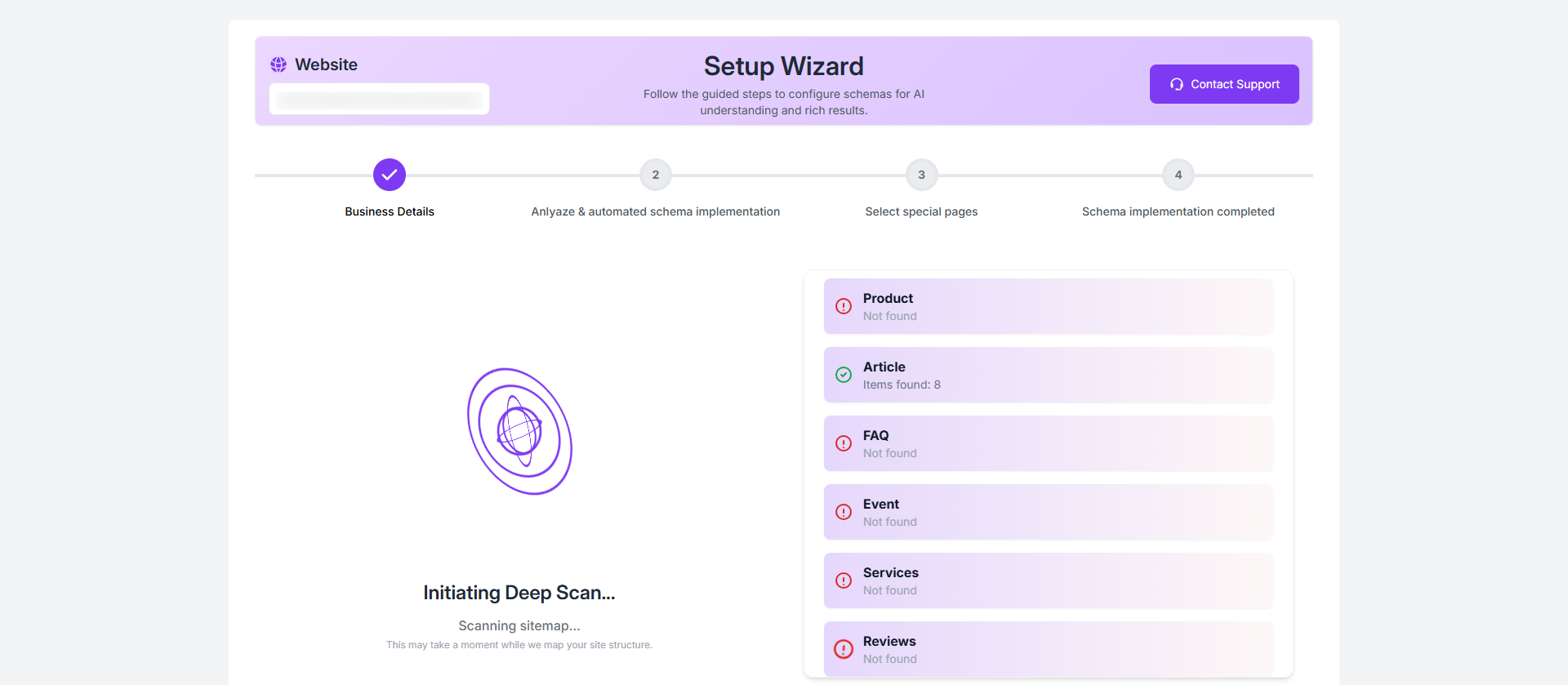
Step 9: The tool will start a deep scan of your website to identify pages and detect applicable schema types automatically.
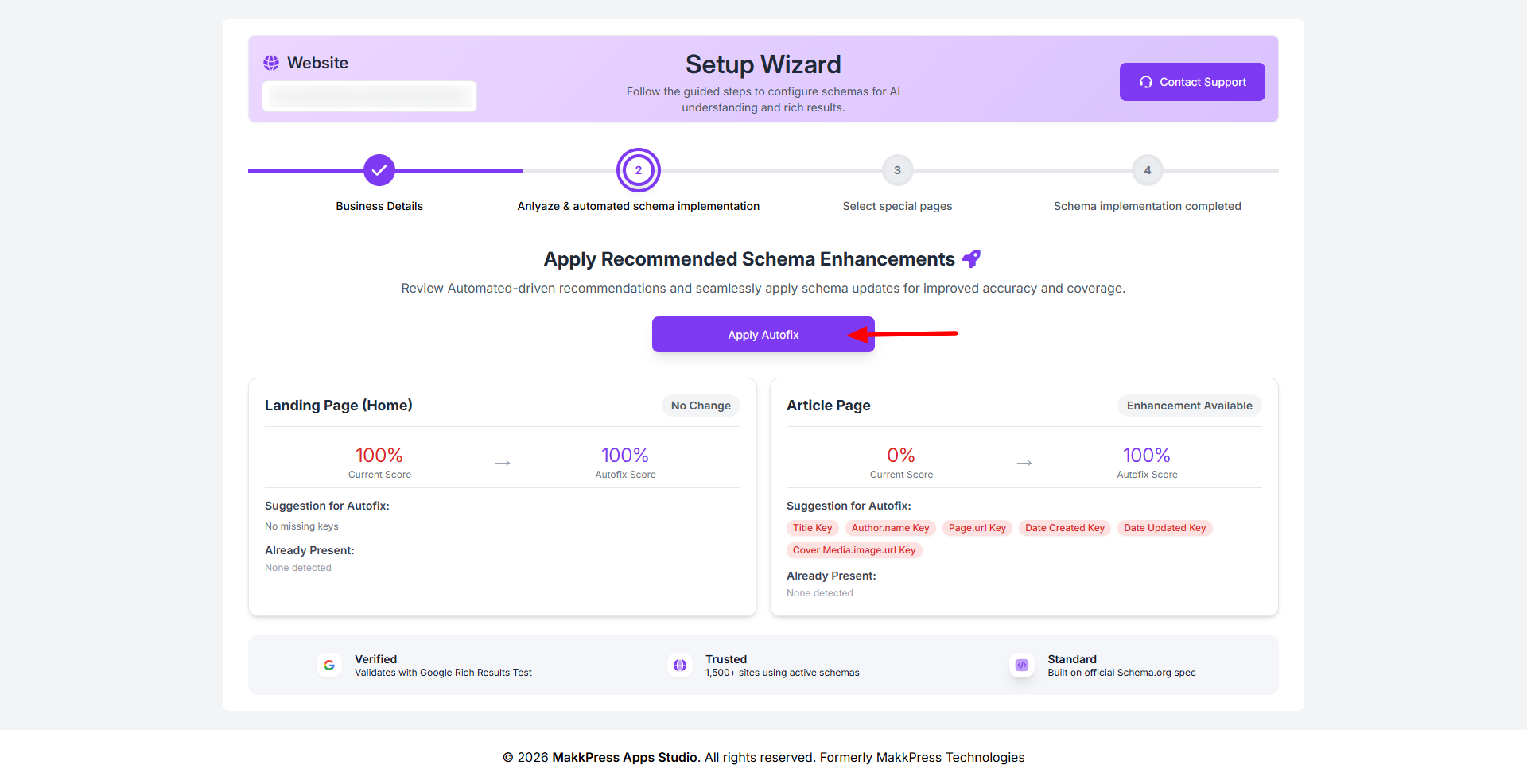
Step 10: Review the suggested schema improvements and click “Apply Autofix” to automatically implement the recommended updates.
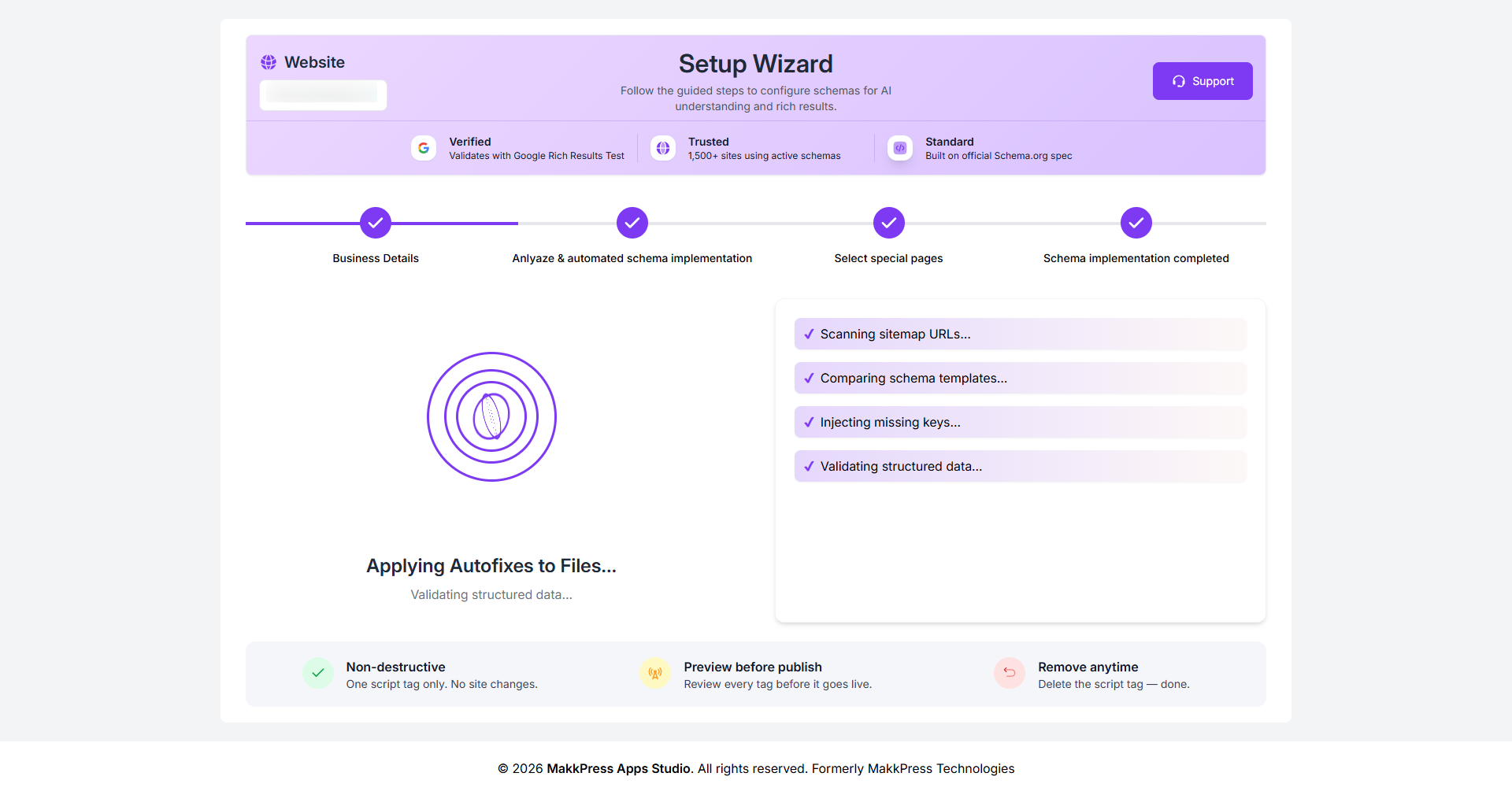
Step 11: The app will now apply autofixes and validate your structured data to ensure everything is correctly implemented across your website.
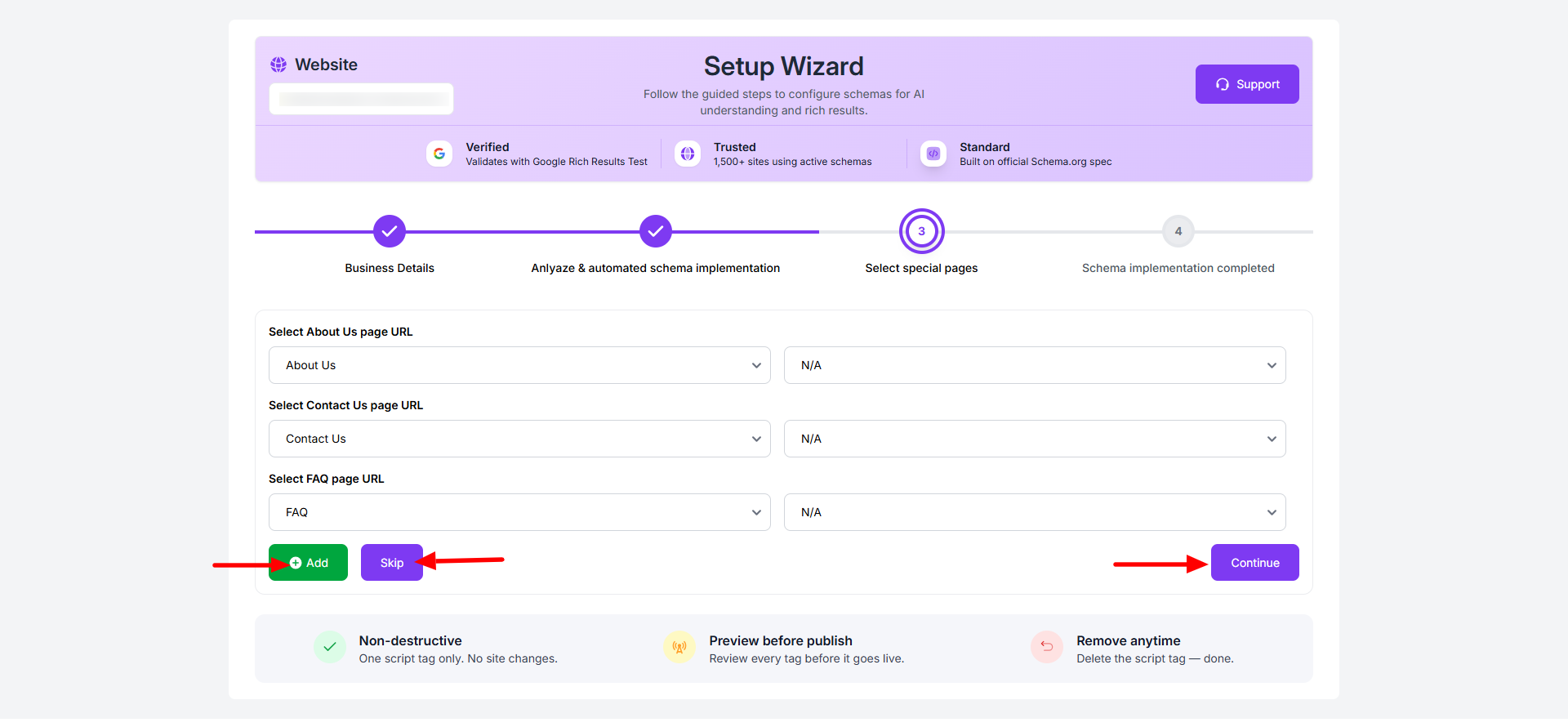
Step 12: Select important pages like About Us, Contact Us, and FAQ from the dropdown options. You can add more pages or skip optional ones, then click “Continue” to proceed.
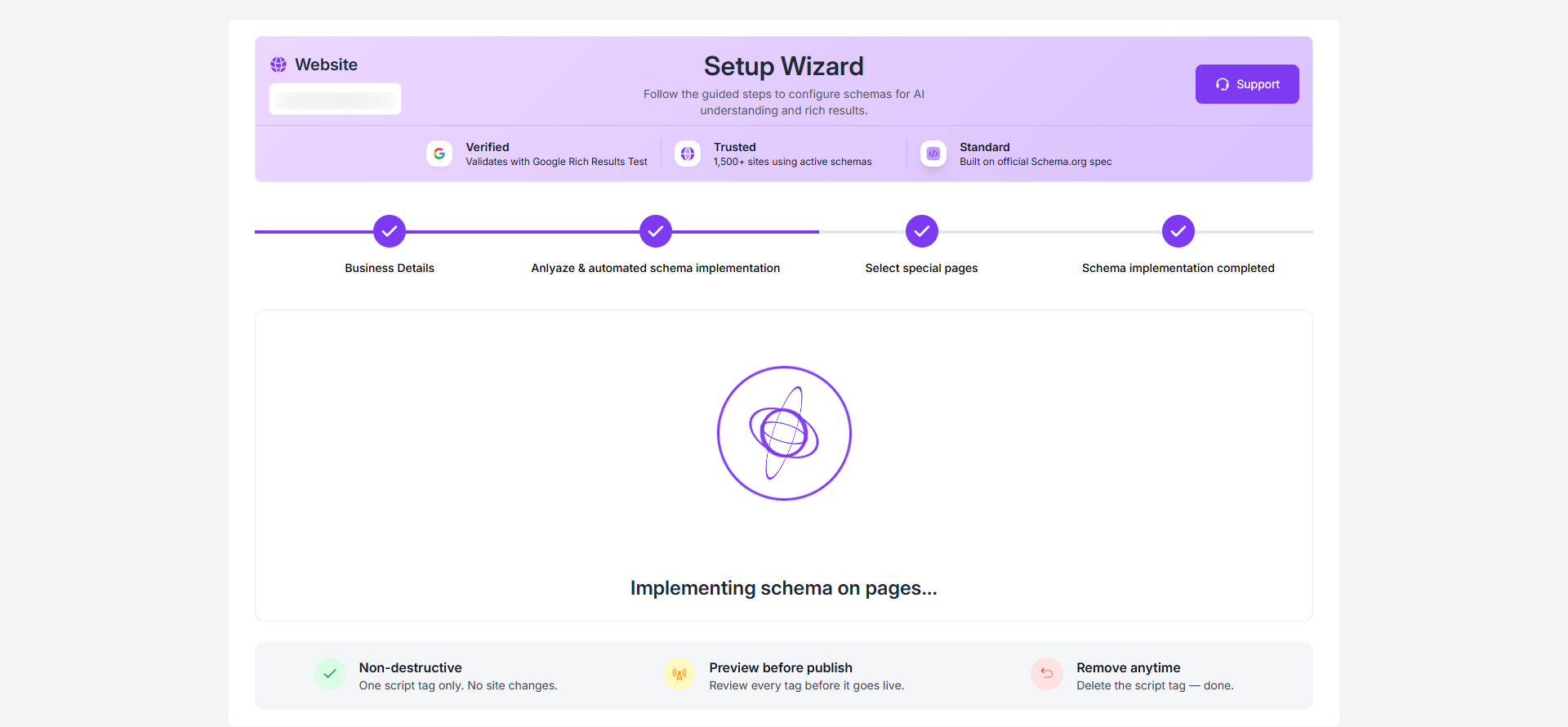
Step 13: The tool will now implement schema across your website pages automatically.
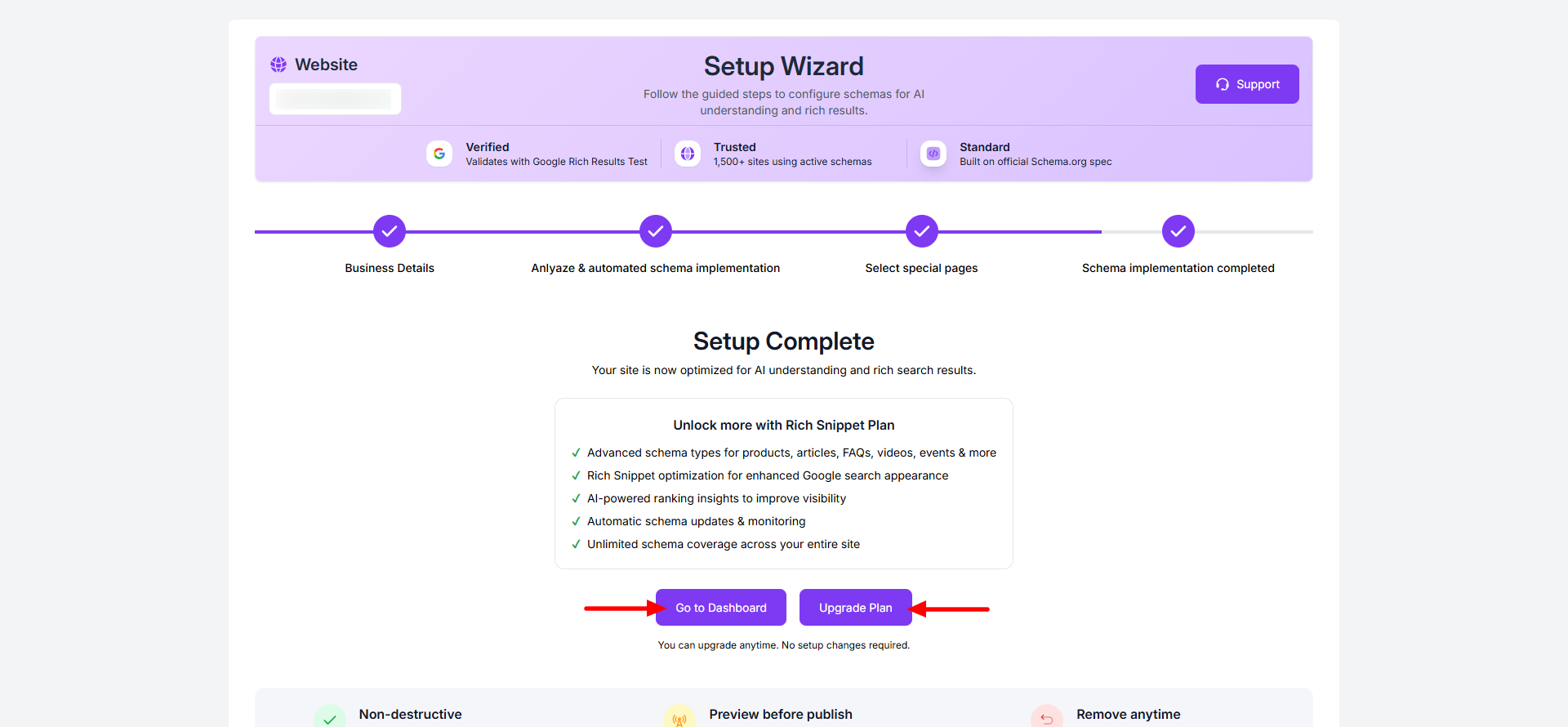
Step 14: Your setup is now complete. Click “Go to Dashboard” to manage your schema settings or choose “Upgrade Plan” to access additional features.
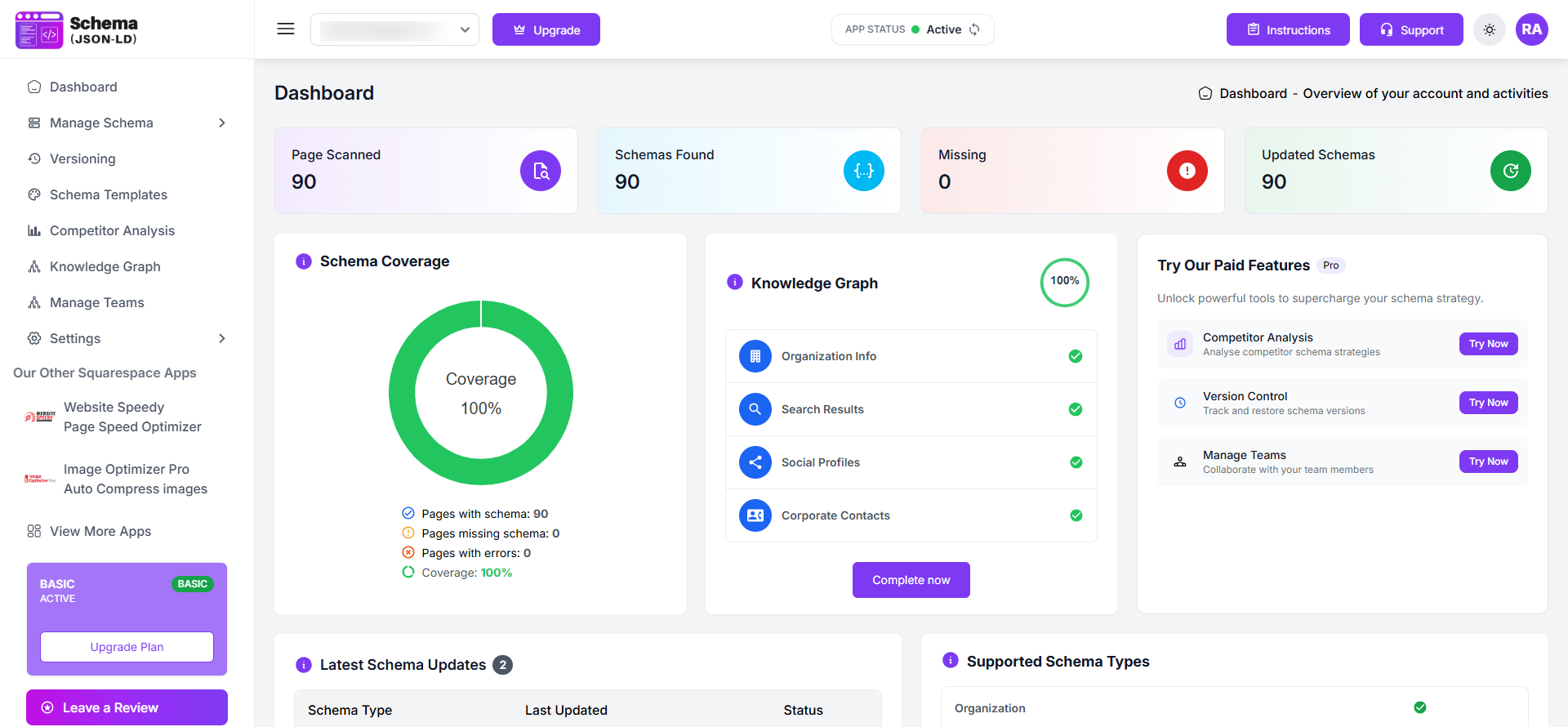
Step 15: After setup, you’ll be redirected to the dashboard where you can monitor schema coverage, track performance, and manage your structured data anytime.
Found this helpful?
( 2 out of 5 found helpful )