You can easily add custom schema data to any specific page or product on your Squarespace website using the JSON Schema App. This allows you to assign a custom schema template and enhance structured data for better SEO and Google Rich Results visibility.
Follow the flow below:
How It Works
Step 1: Open "Manage" Schema
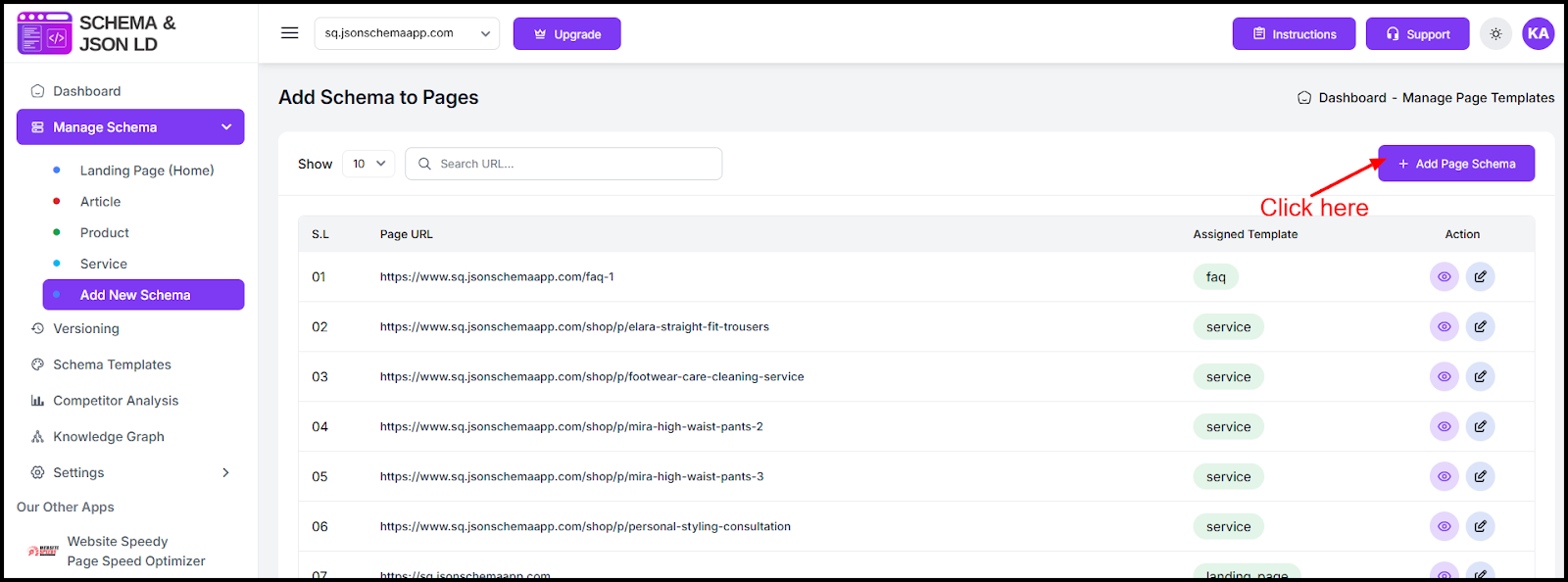
From your app dashboard, click Manage Schema in the left sidebar.
Step 2: Click “Add Page Schema”
On the Add Schema to Pages screen, click the + Add Page Schema button in the top-right corner.
This allows you to assign schema to a specific page or product URL.
Step 3: Enter Page URL
In the popup window:
- Enter the exact page or product URL
- Example: /shop/product-name or /service-page
Make sure the URL matches your live Squarespace page.
4: Select Schema Template
From the Template dropdown, choose the appropriate schema type, such as:
- Product
- Service
- FAQ
- Article
- Landing Page
Templates contain predefined structured data fields that you can customize.
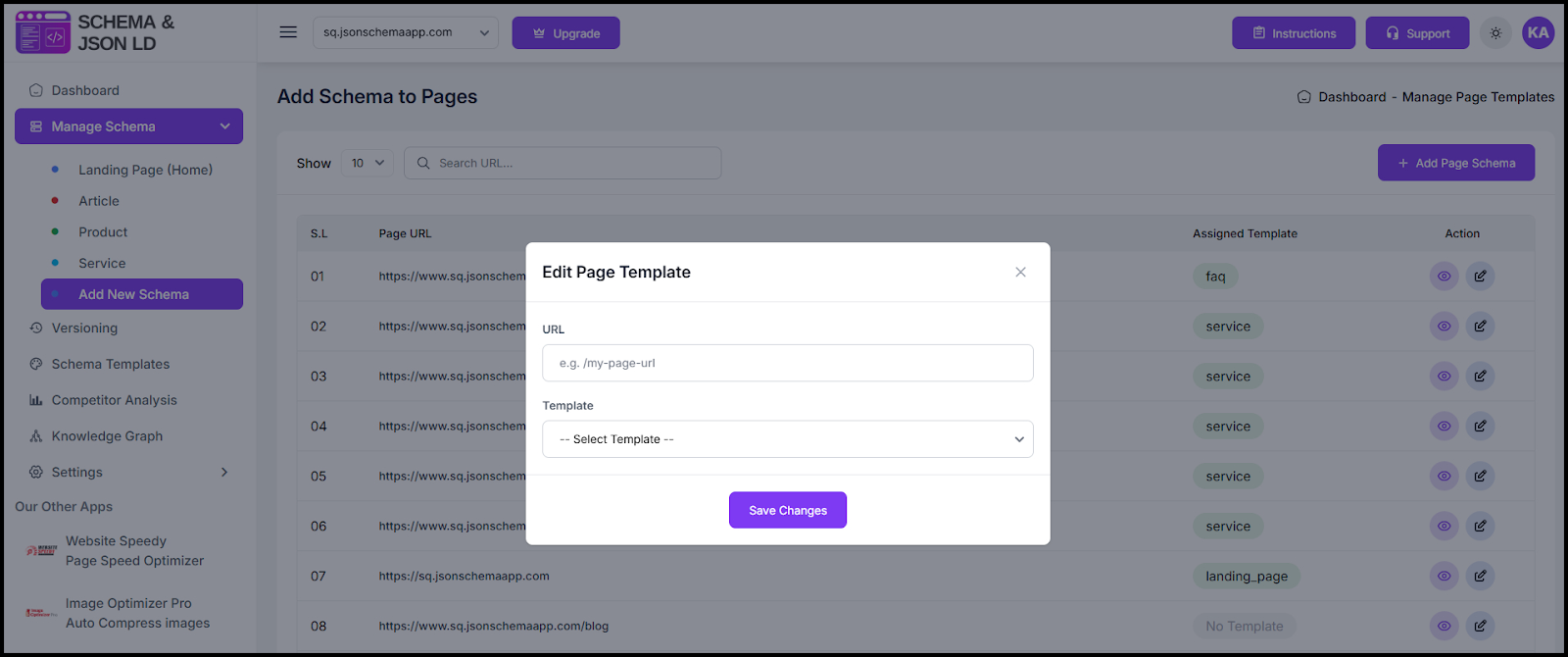
Step 5: Save Changes
Click Save Changes.
Your custom schema template is now assigned to that specific page or product.
What This Allows You to Do
By assigning a custom schema template, you can:
- Add product-specific attributes (SKU, brand, price, availability)
- Add FAQ schema to service pages
- Customize landing page structured data
- Override default schema settings
- Improve eligibility for Google Rich Results
Why Use Custom Page Schema?
This feature gives you:
- Full control over structured data per URL
- More accurate schema markup
- Better SEO targeting
- Cleaner JSON-LD implementation
- Enhanced search visibility
Using page-level schema customization ensures your Squarespace structured data perfectly matches your content strategy.
Found this helpful?
( 13 out of 38 found helpful )