Installing the JSON Schema App on your Wix website helps search engines and AI systems better understand your site, improving SEO and search visibility. Follow the steps below to install and set it up.
Step 1: Log in to your Wix account.
Step 2: Go to the JSON Schema App in the Wix App Marketplace.
Step 3: Click on the ‘Add to Site’ button.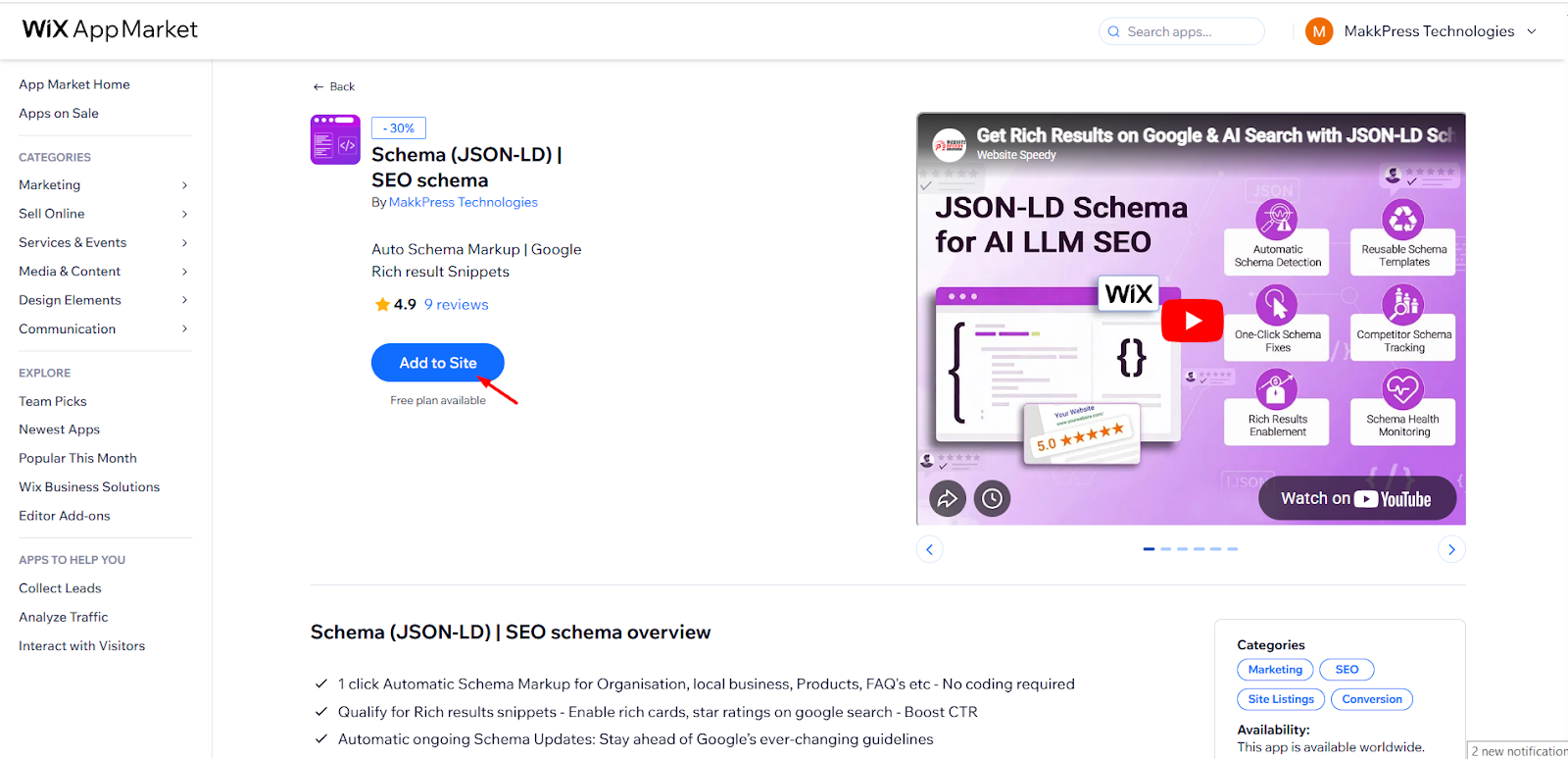
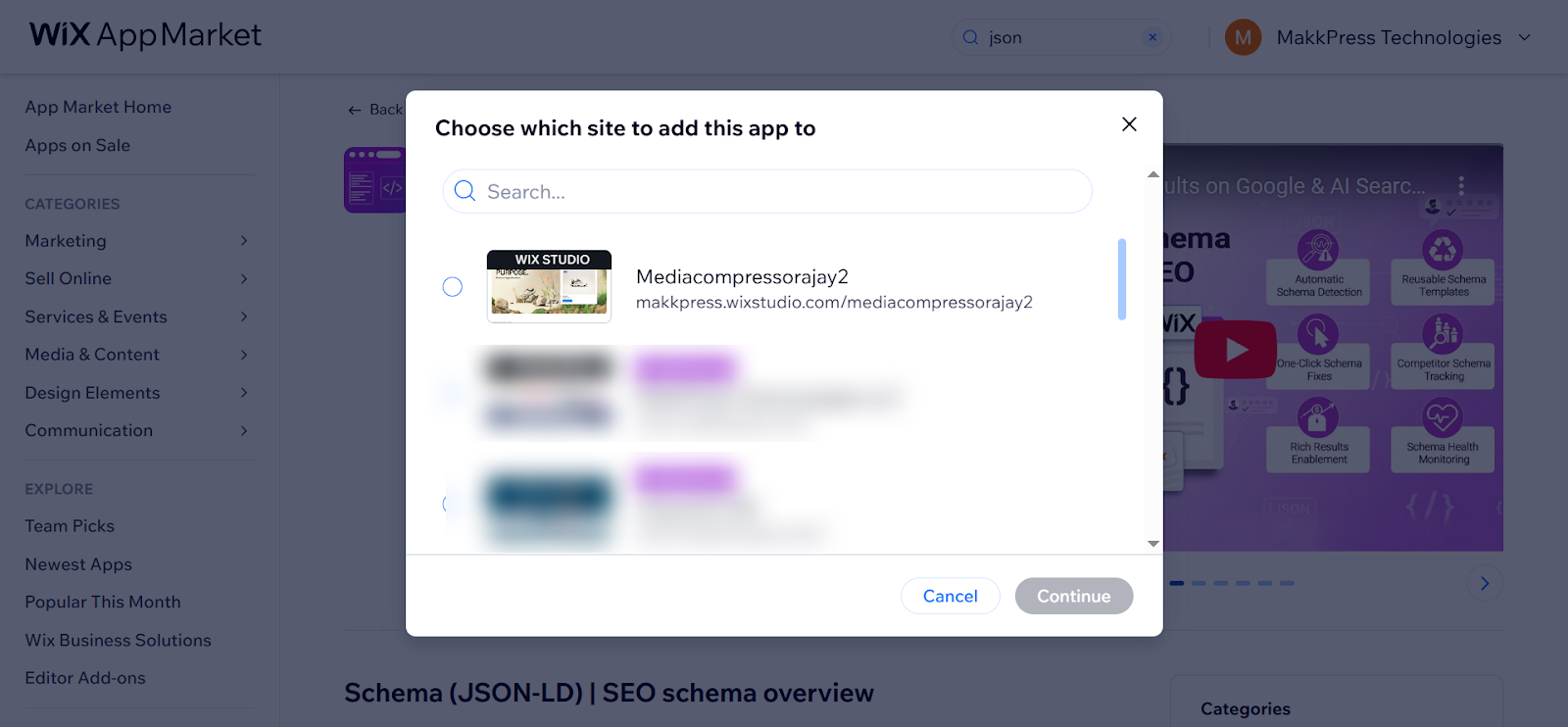
Step 4: Then select the website where you want to install the app and fix the schema markup instantly.
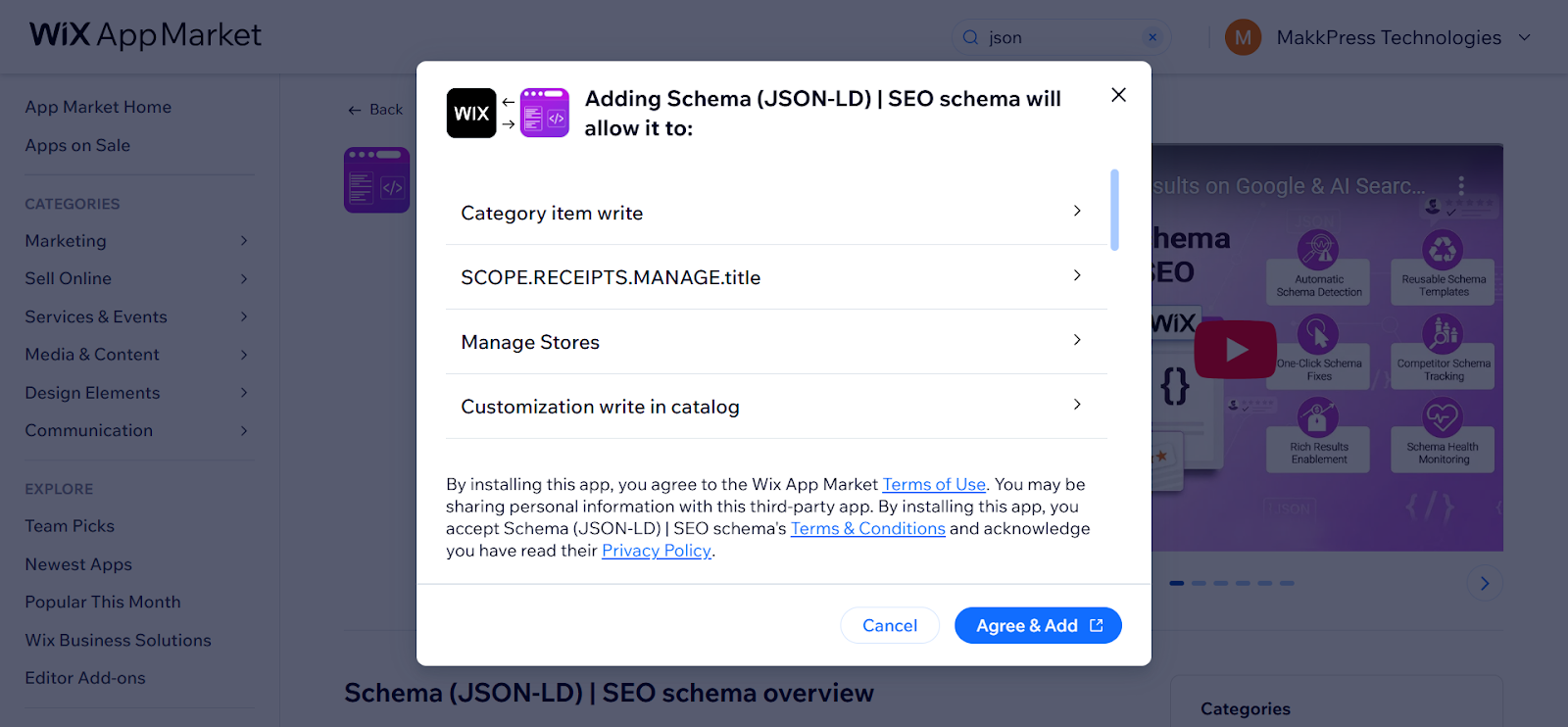
Step 5: Click the ‘Agree & Add’ button.
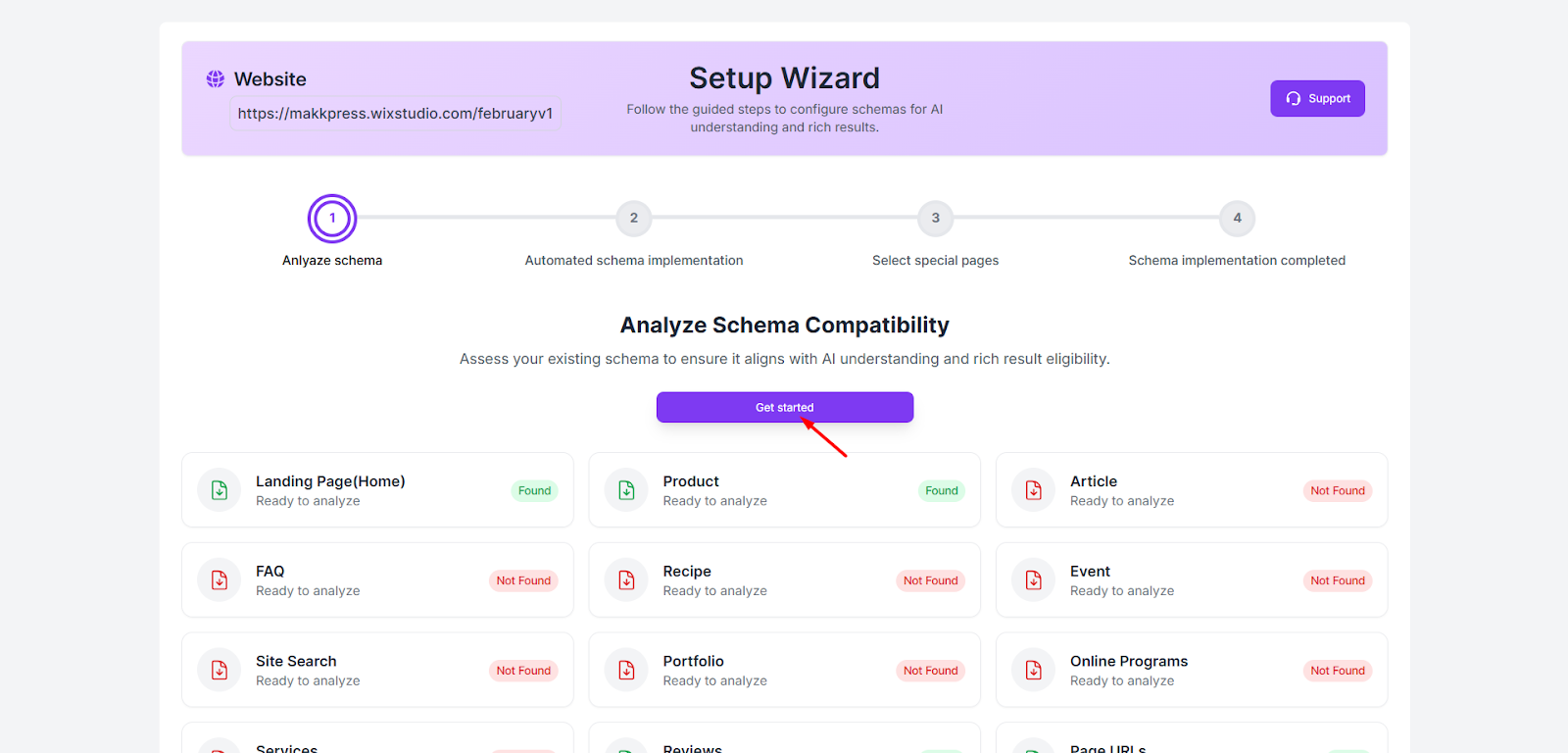
Step 6: You will be redirected to the Setup Wizard page. Click “Get Started” to begin analyzing the existing schema on your website.
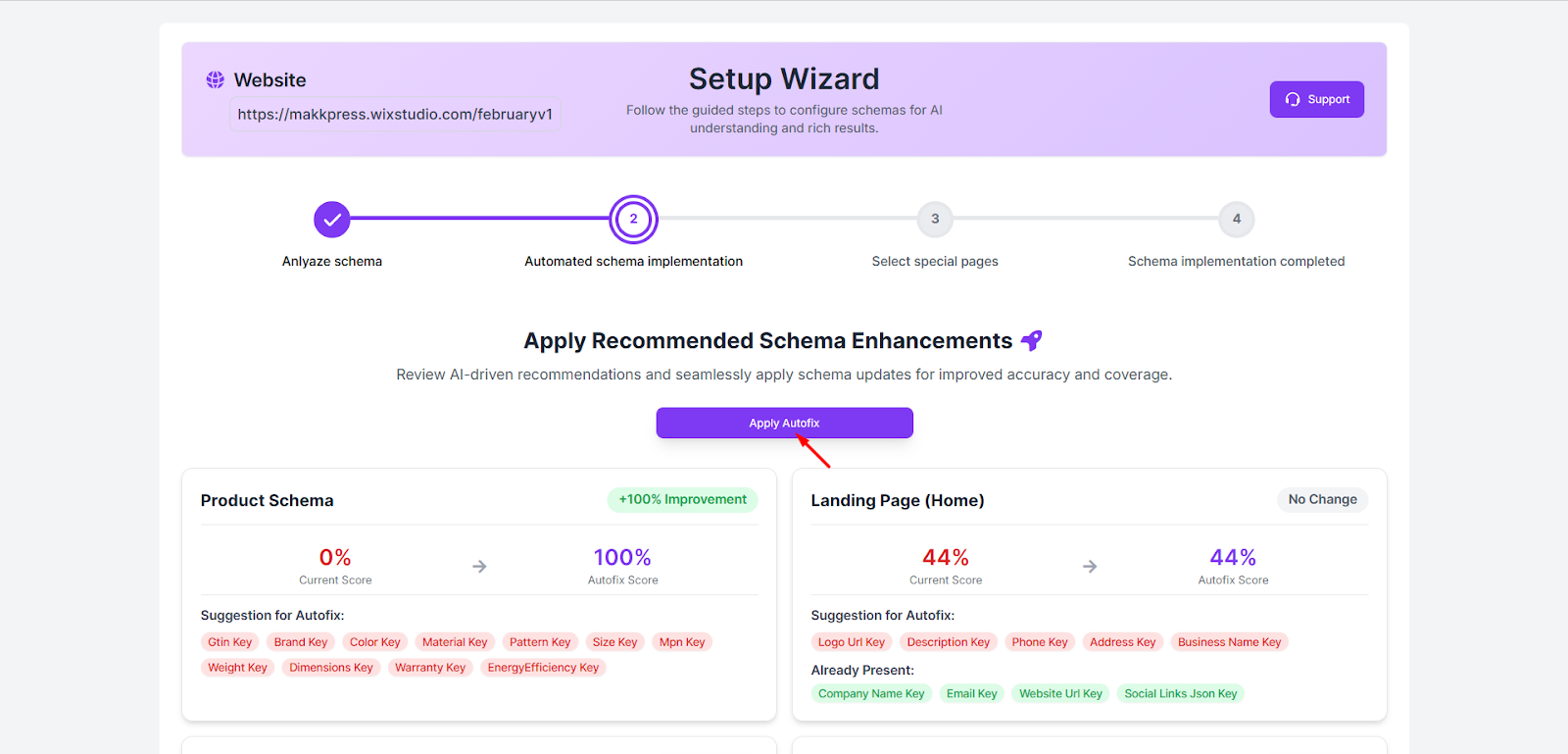
Step 7: After the analysis, the wizard shows your current schema score and the improved score after optimization. Click “Apply Autofix” to automatically apply the recommended schema improvements.
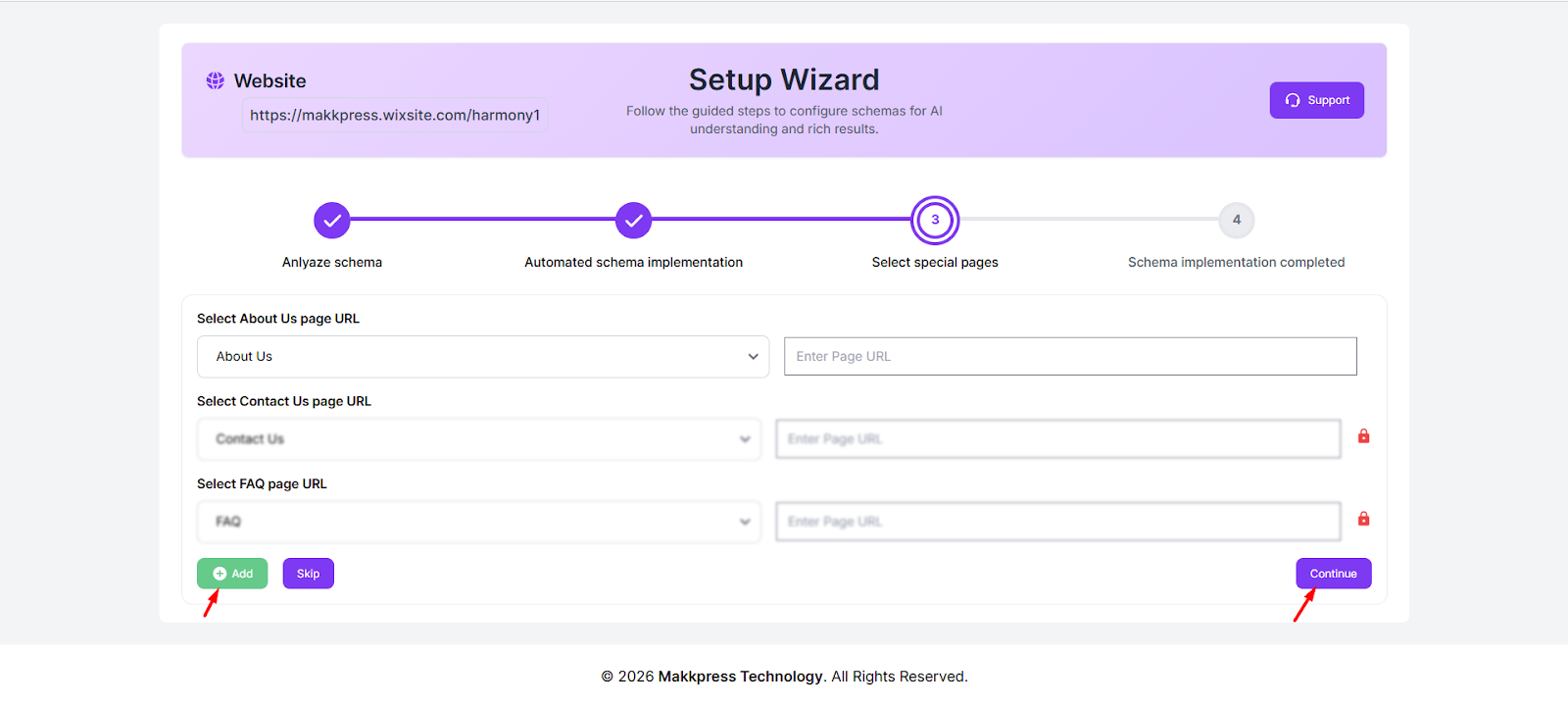
Step 8: Select the URLs for important pages such as About Us, Contact Us, and FAQ from the dropdown menus. If needed, you can add more pages by clicking Add. Once selected, click “Continue” to proceed to the final step.
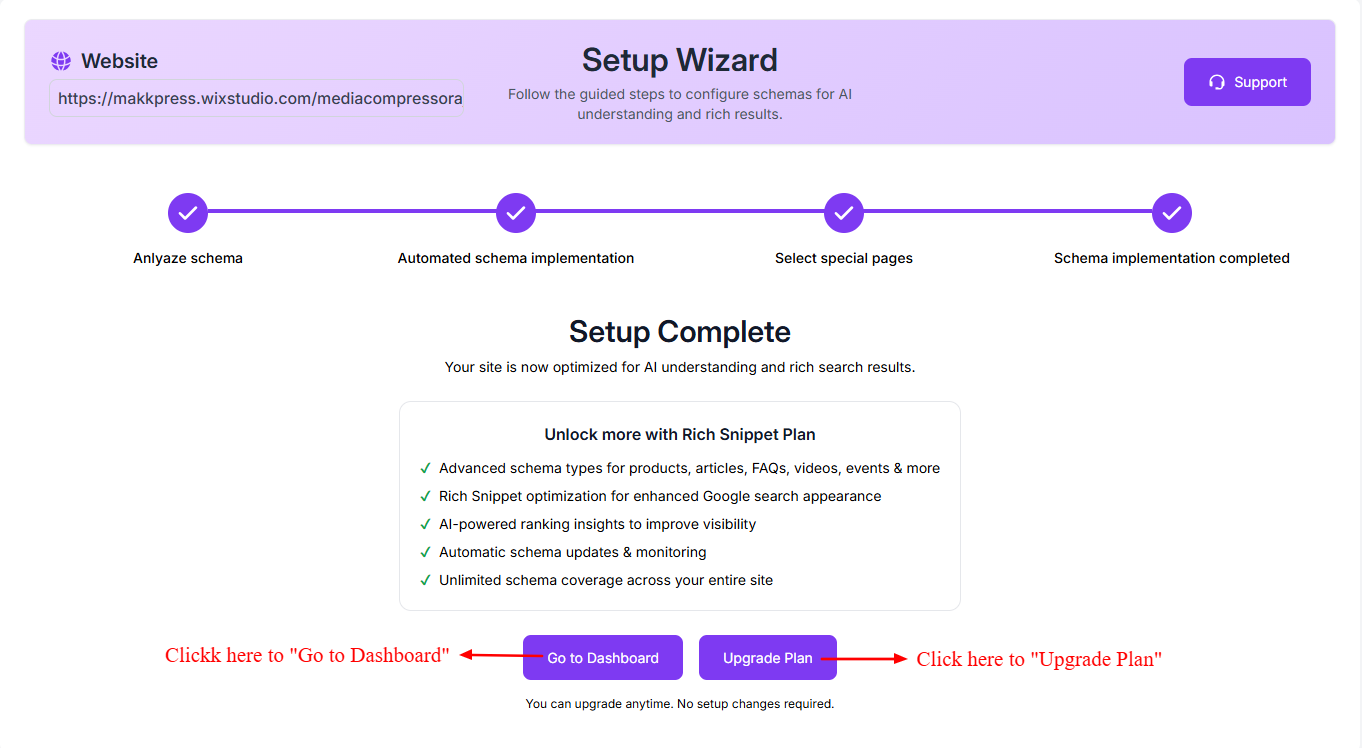
Step 9: Your schema setup is now complete. Click “Go to Dashboard” to manage your schema settings and monitor your website schema. You can also click “Upgrade Plan” to unlock advanced schema features and rich snippet optimization.
Found this helpful?
( 2 out of 4 found helpful )